Your Family Chores Handbook
Welcome to the Chores app on your DAKboard — the simple way to run your family's chore chart, right on your screen. Add people and tasks, earn points, pick rewards, and make it your own. No tech know-how required: if you can tap and swipe, you can do everything in here.
1 Welcome
A quick picture of what the app is for and how to find your way around the screen.
What you can do
The Chores app is part of your DAKboard — a shared chore chart for your household, right on your DAKboard screen. Each person gets their own column of jobs to do, and ticking a job off earns points that can be traded in for real-world rewards.
With it you can:
- Give each family member their own list of chores.
- Set chores to repeat — every day, every week, every two weeks, or every month.
- Reward finished chores with points, a leaderboard, and prizes you decide on.
- Change the colours to suit your home, and lock the screen so little ones can't change things.
The main screen at a glance
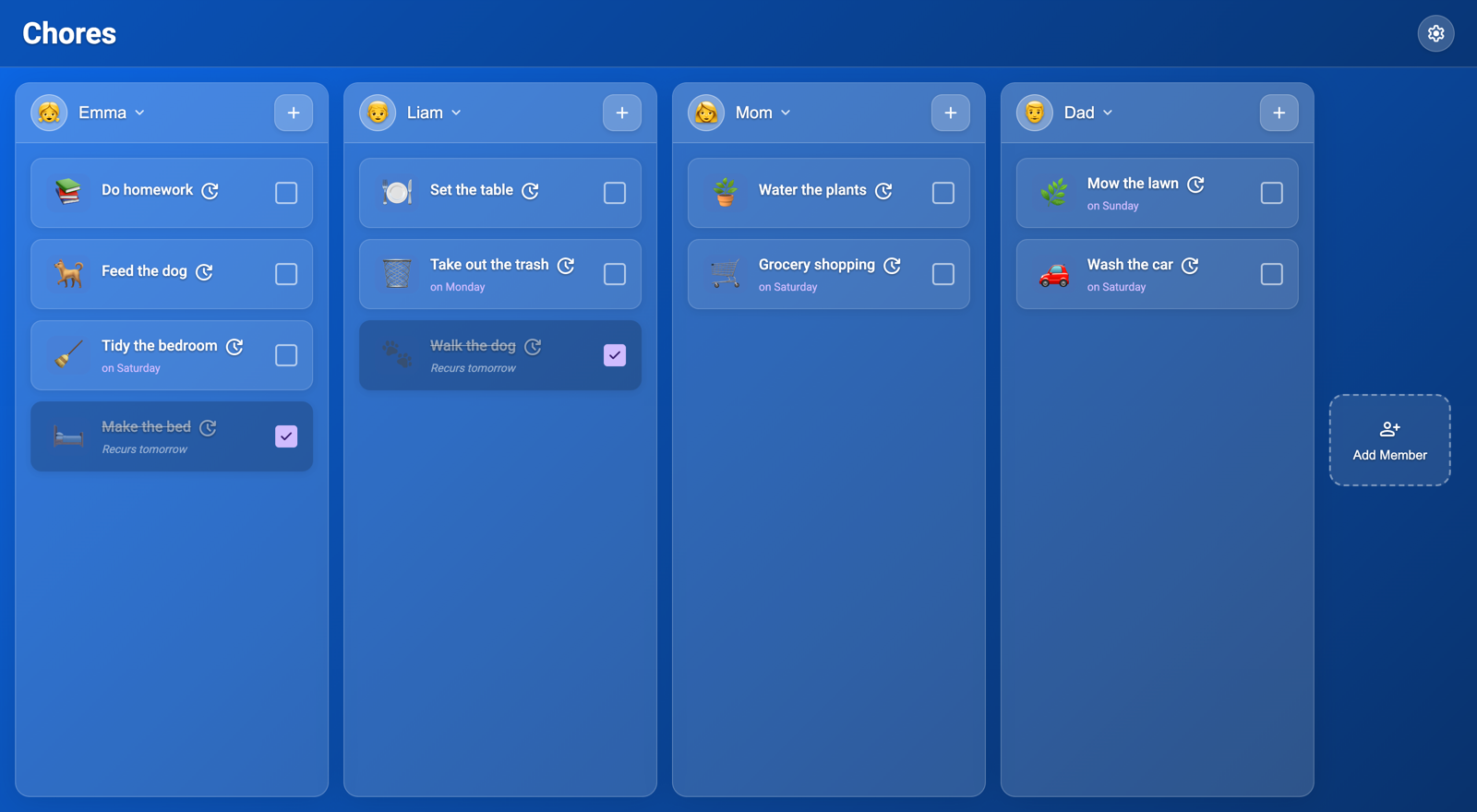
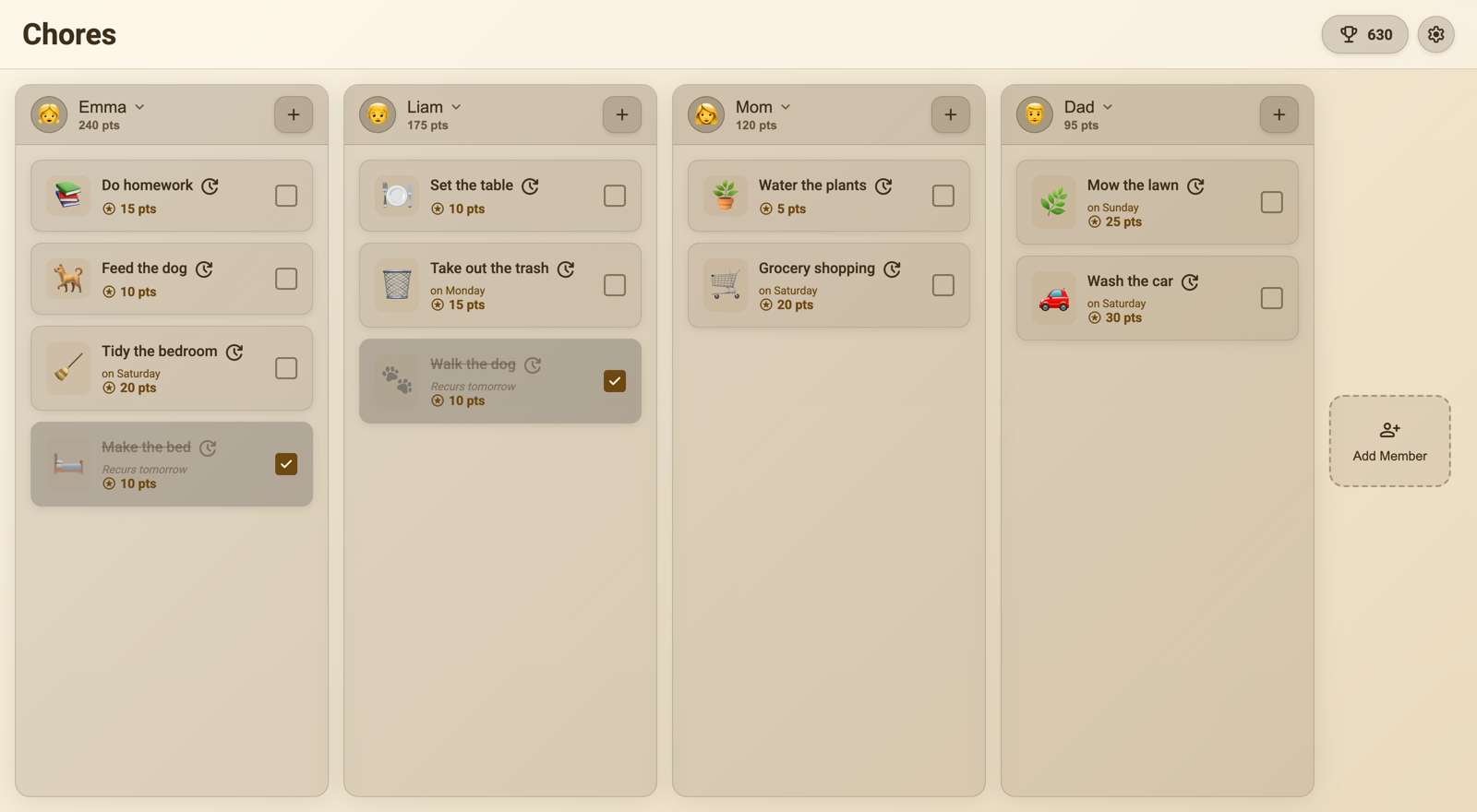
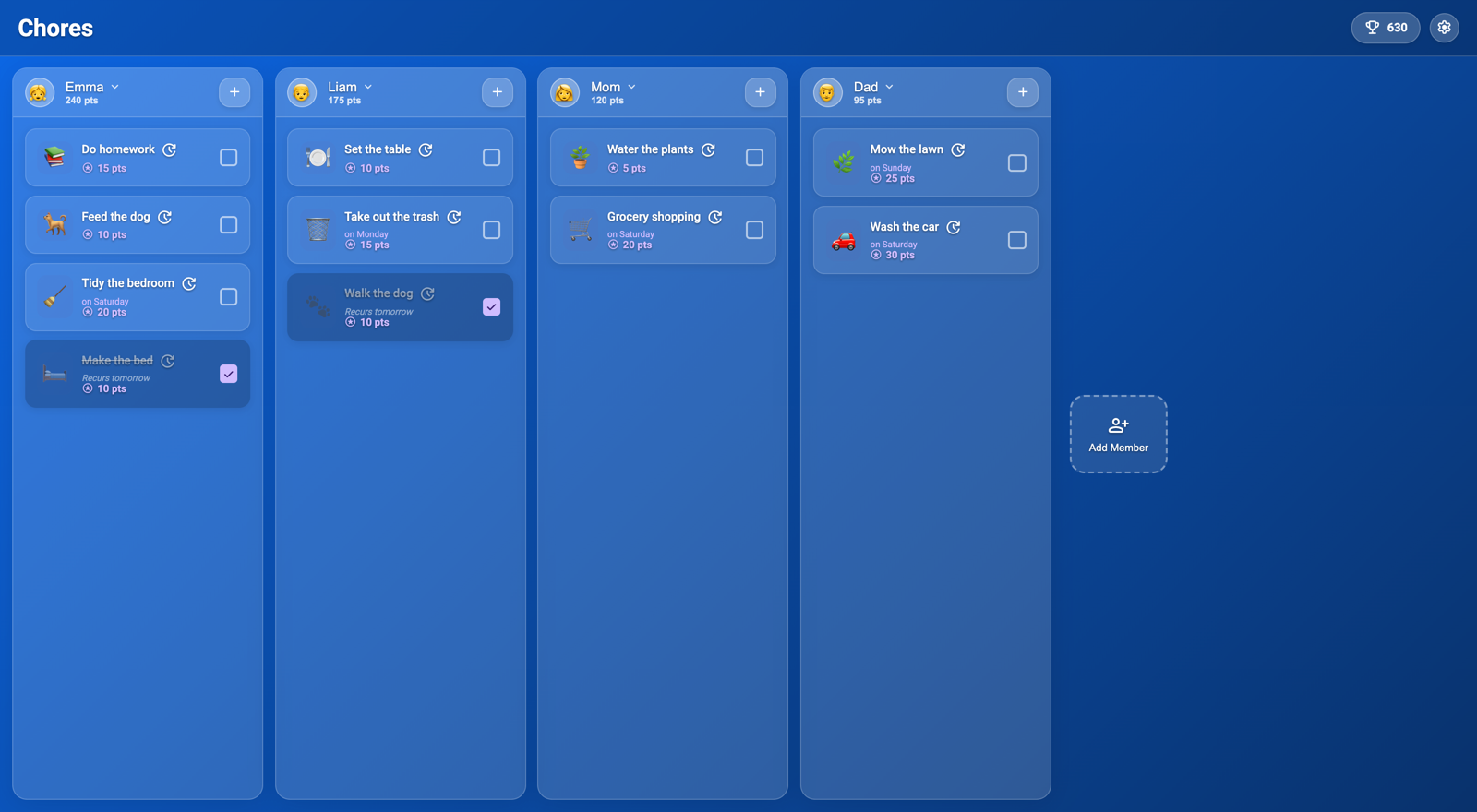
This is the home screen. Everyone in the family has a column, and each column holds that person's chores. Here's what every part does:

- The title. Just the name of the app.
- Trophy / total points. Shows the family's combined points. Tap it for the leaderboard.
- Settings (gear). Colours, the points switch, and Child Lock live here.
- A person's name & photo. Tap it for a small menu (edit, redeem, reorder).
- The “+” button. Adds a new chore for that person.
- A chore card. One job. Tap or swipe it to mark it done.
- Finished chores. Completed jobs drift to the bottom so the to-do list stays on top.
- Add Member. The dashed tile on the far right adds a new family member.
Ways to tap & swipe
The app is built for touch screens. Five simple gestures do almost everything — here's the whole list:
2 Getting Started
From finding the Chores app on your DAKboard to adding your first family member.
Finding the app on your DAKboard
The Chores app is added to your DAKboard through your DAKboard Touch Hub settings. Once it has been added there, it appears on your DAKboard device by itself — there's nothing to install, and no separate sign-in just for the app.
- Whoever manages your DAKboard adds the Chores app from the Touch Hub settings.
- After that it's simply there on your screen, ready whenever you are.
- Open it the same way you open anything else on your DAKboard.
Your first family member
When the board is empty, the app helps you straight away: it pops open the Add Member box so you can add your first person. (Chores need someone to belong to, so this comes first.)
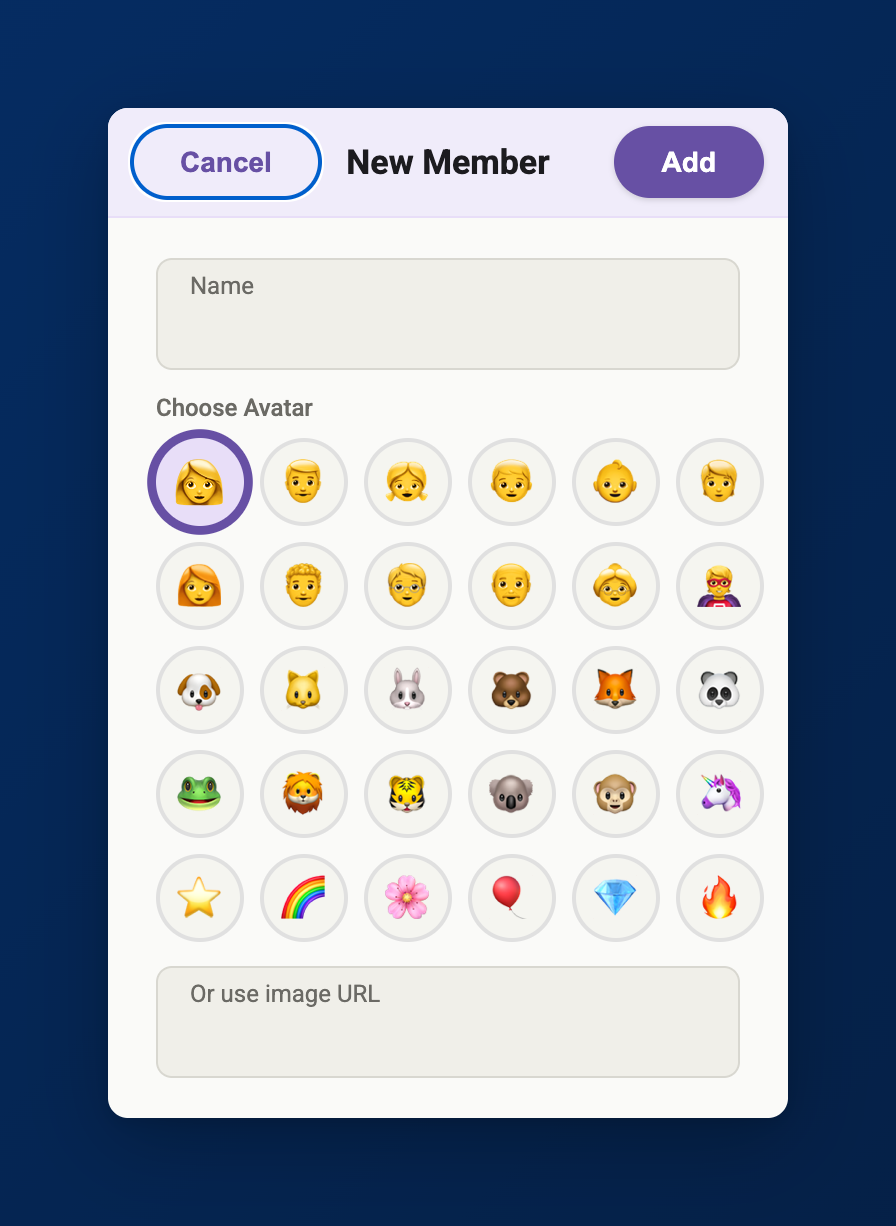
- Type the person's name.
- Tap a face from the grid (or paste a photo link — see the next section).
- Tap Add. Their column appears, ready for chores.
How the screen arranges itself
You don't have to set anything up — the app looks at the shape of your screen and arranges itself to fit. There are three looks:
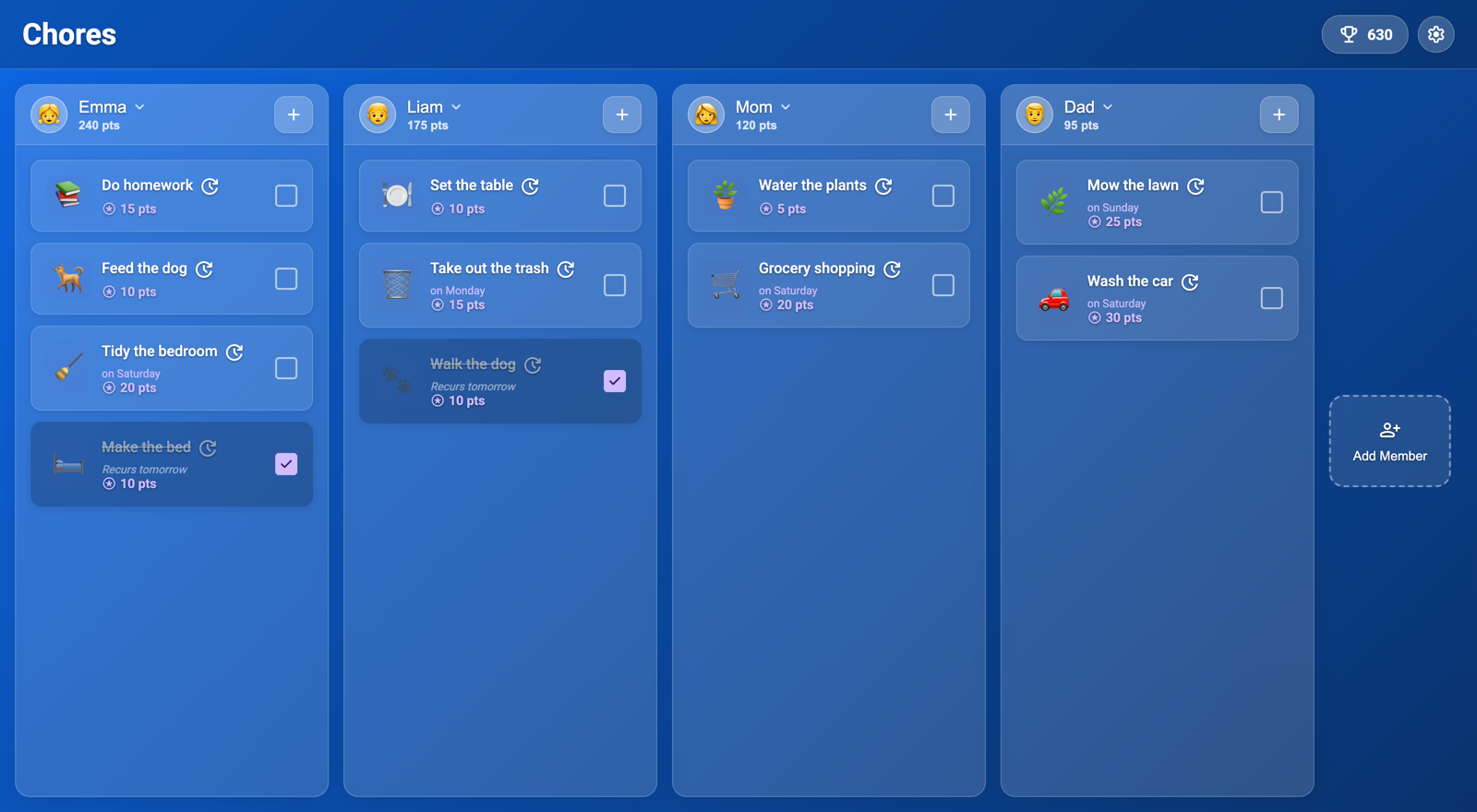
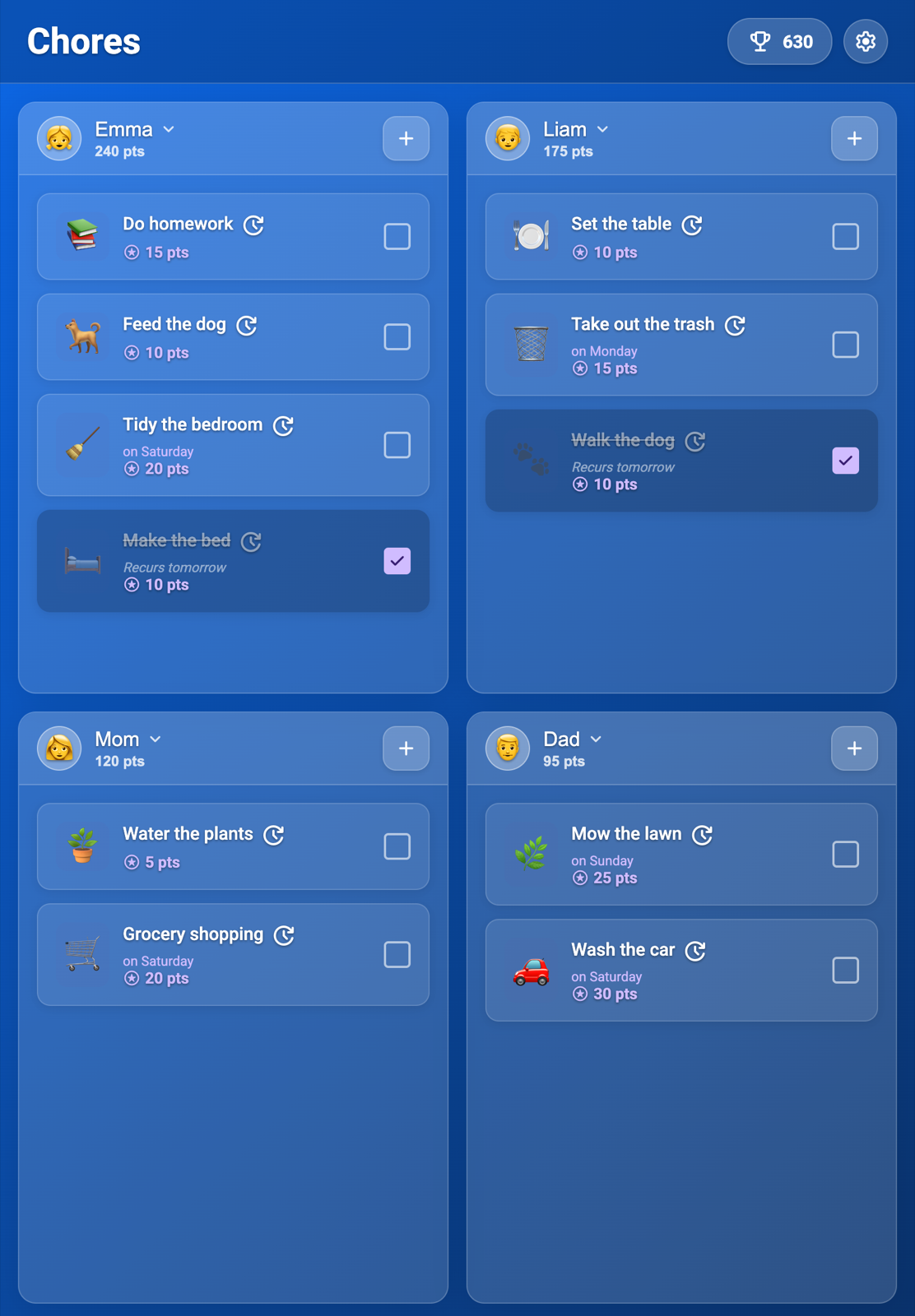
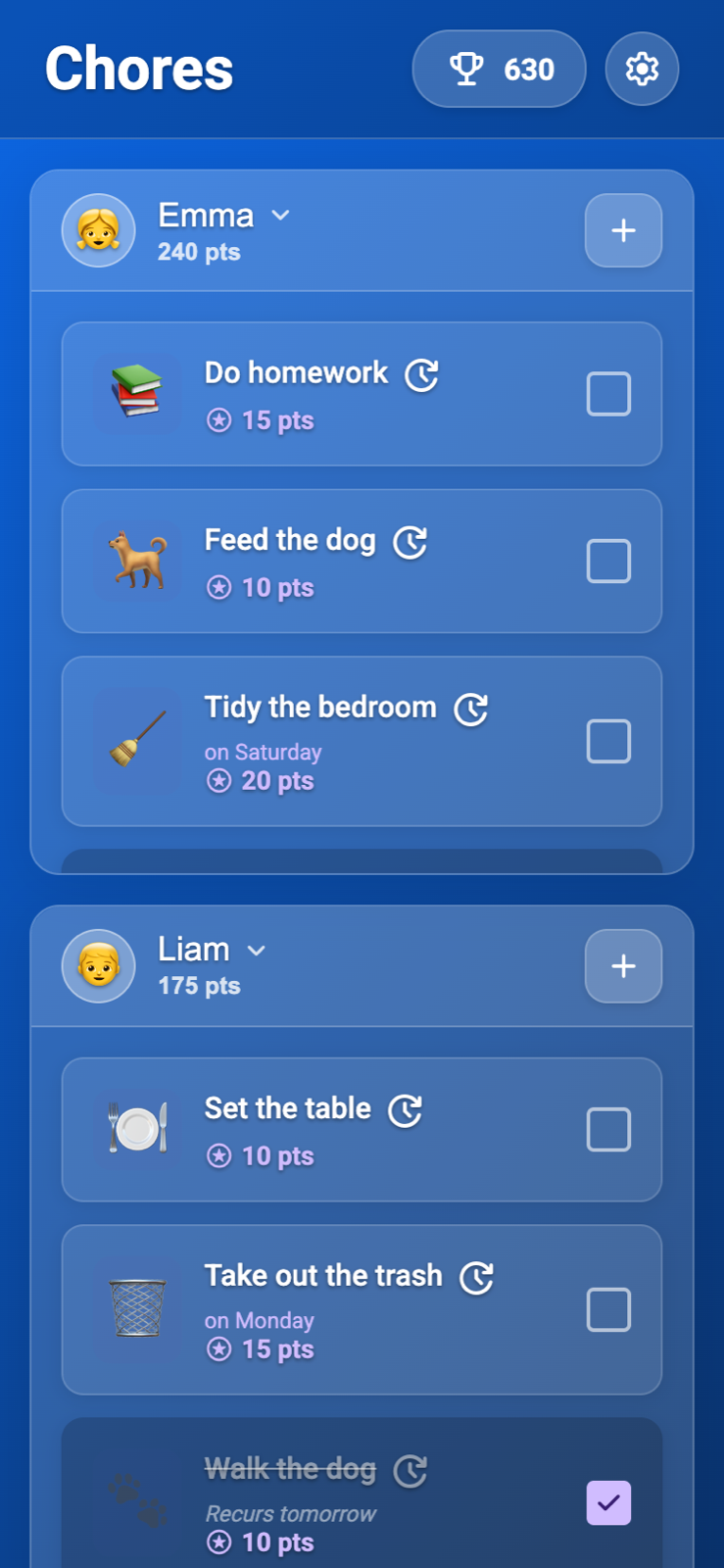
Turn a tablet sideways and the layout re-flows on the spot — no need to reload or change a setting.
3 Family Members
Adding the people in your household, and changing or removing them later.
Adding a member
Tap the dashed Add Member tile on the far right of the board to open the box below.
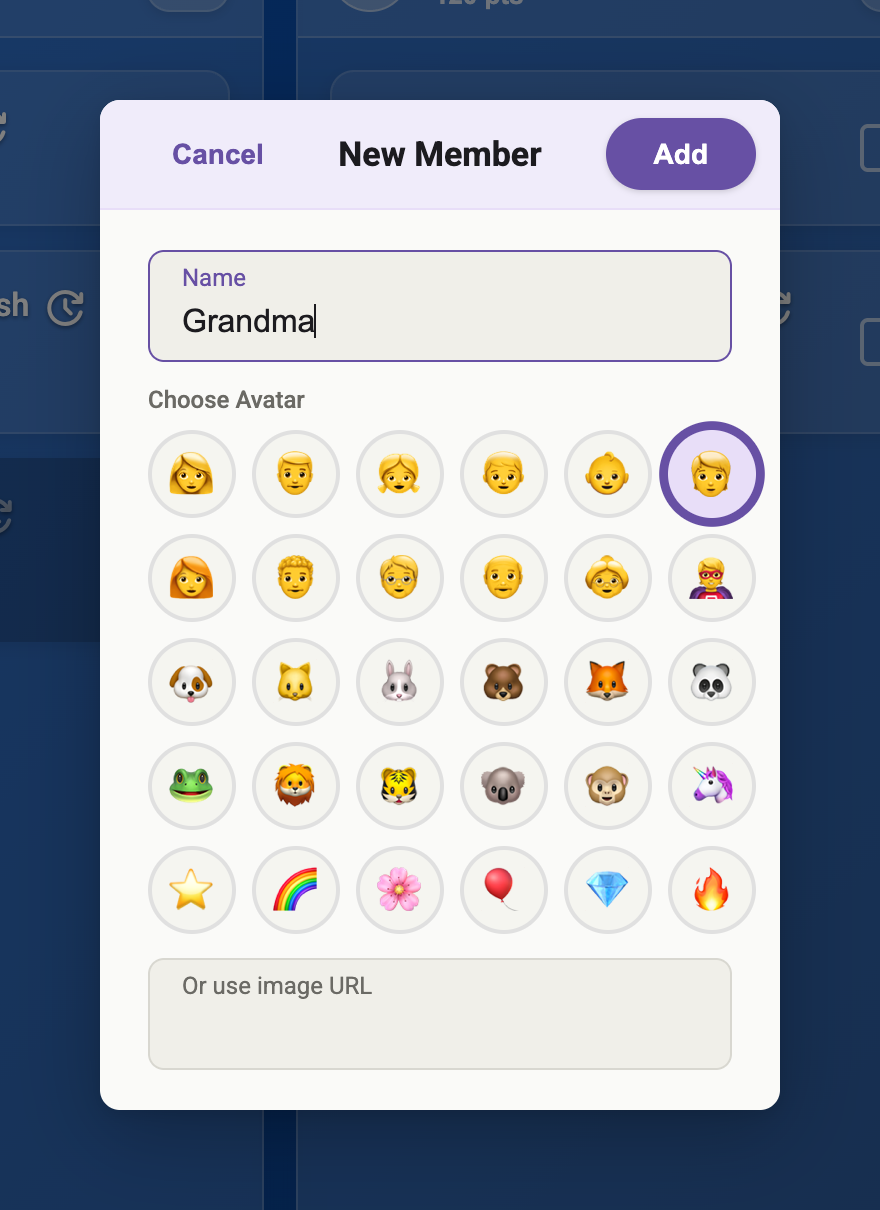
- Enter the name.
- Pick an avatar: tap a face from the grid…
- …or paste a photo link in the “Or use image URL” box to use a real picture instead.
- Tap Add.
Editing or removing a member
Tap a person's name and face at the top of their column (look for the little ﹀ arrow). A small menu appears:
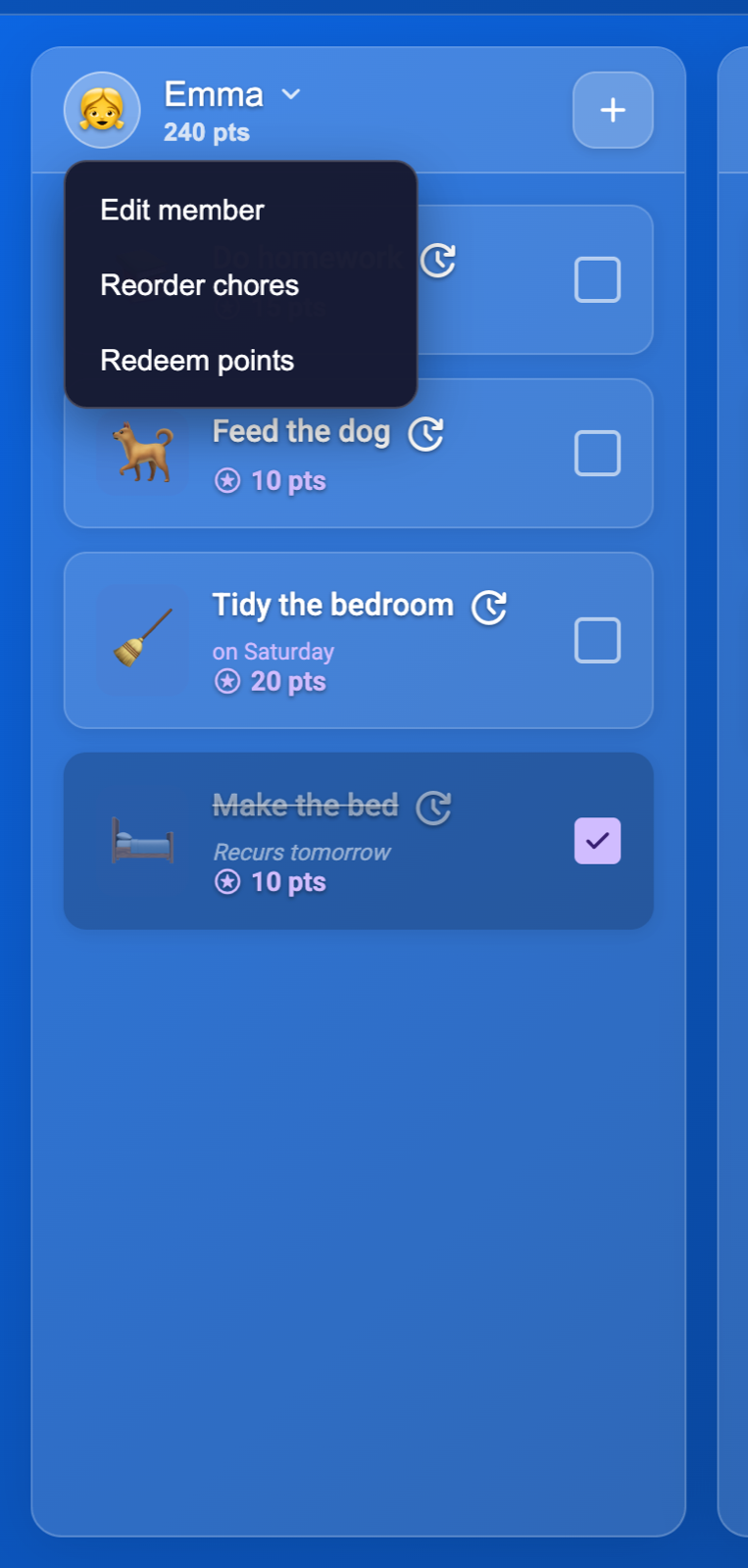
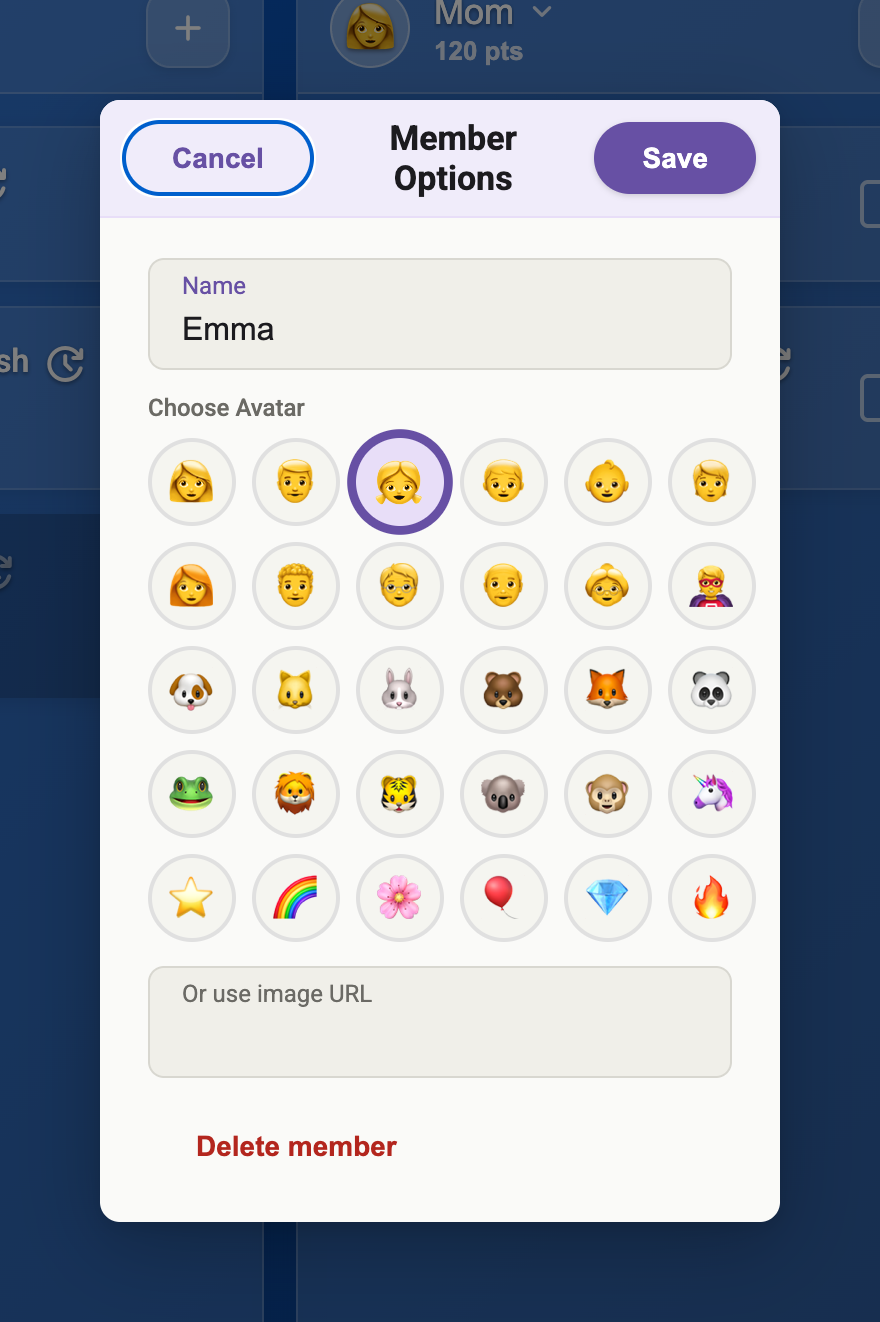
- Edit member — rename the person, change their face, or remove them with the red Delete button.
- Reorder chores — arrange that person's list by hand (see §4).
- Redeem points — jump straight to spending that person's points (see §5).
4 Chores
The heart of the app: creating jobs, decorating them, ticking them off, and keeping them tidy.
Adding a chore
Tap the + button at the top of a person's column. (While a column is empty it reads + Add chore.) The chore box opens, already pointed at that person.
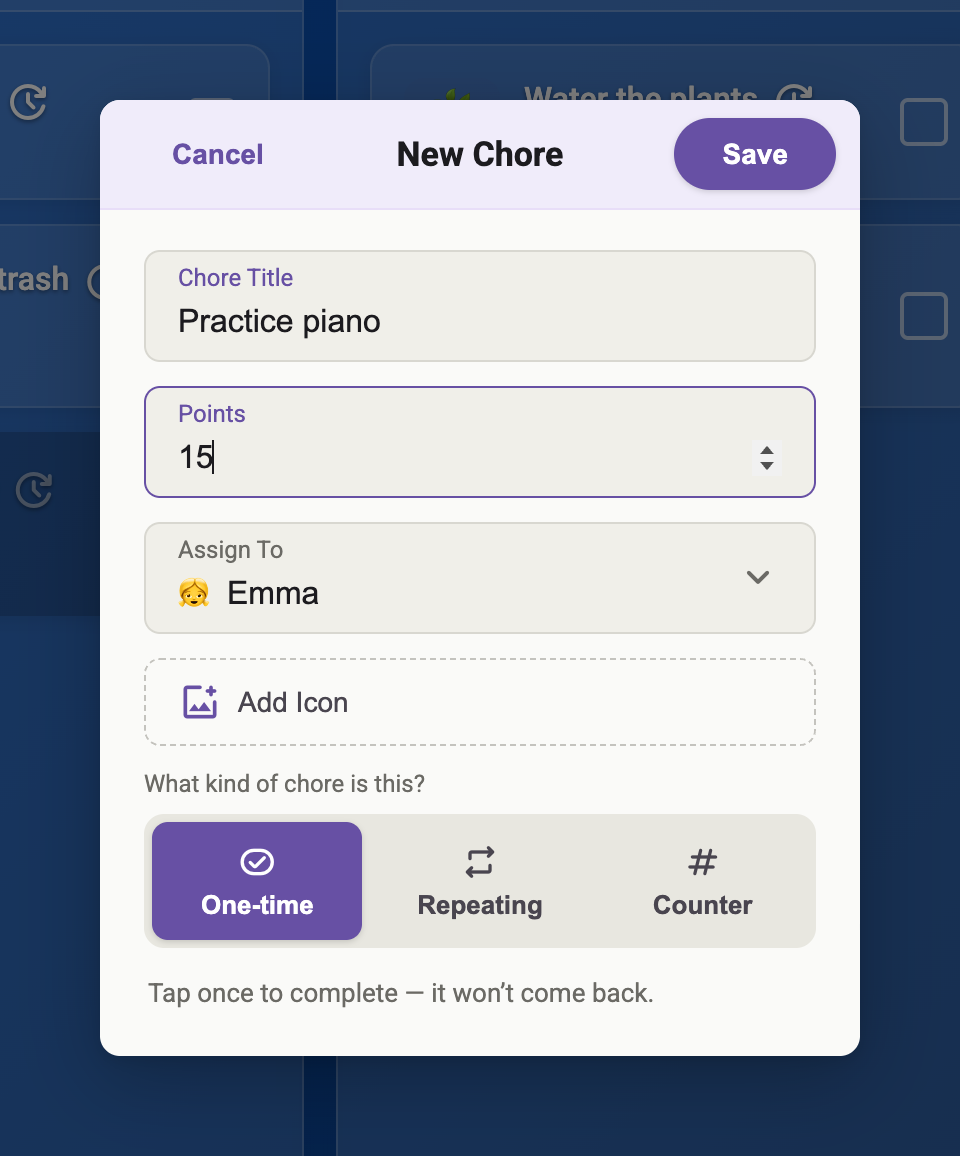
- Chore Title — a short description, e.g. “Wash the dishes”.
- Points — how many points finishing it earns (10 to start).
- Assign To — which family member it belongs to.
- What kind of chore is this? — pick a type, and the box shows just the settings that type needs:
- One-time — do it once and it's gone (great for “tidy the garage”).
- Repeating — comes back on a schedule (see Repeating chores).
- Counter — done several times before it's complete, like “drink 5 glasses of water” (see Counter chores).
- Icon — an optional little picture (covered next).
Tap Save and the chore appears at the bottom of that person's list.
Giving a chore an icon
A picture makes a chore easy to recognise at a glance — handy for children who aren't reading yet. In the chore box, tap Add Icon:
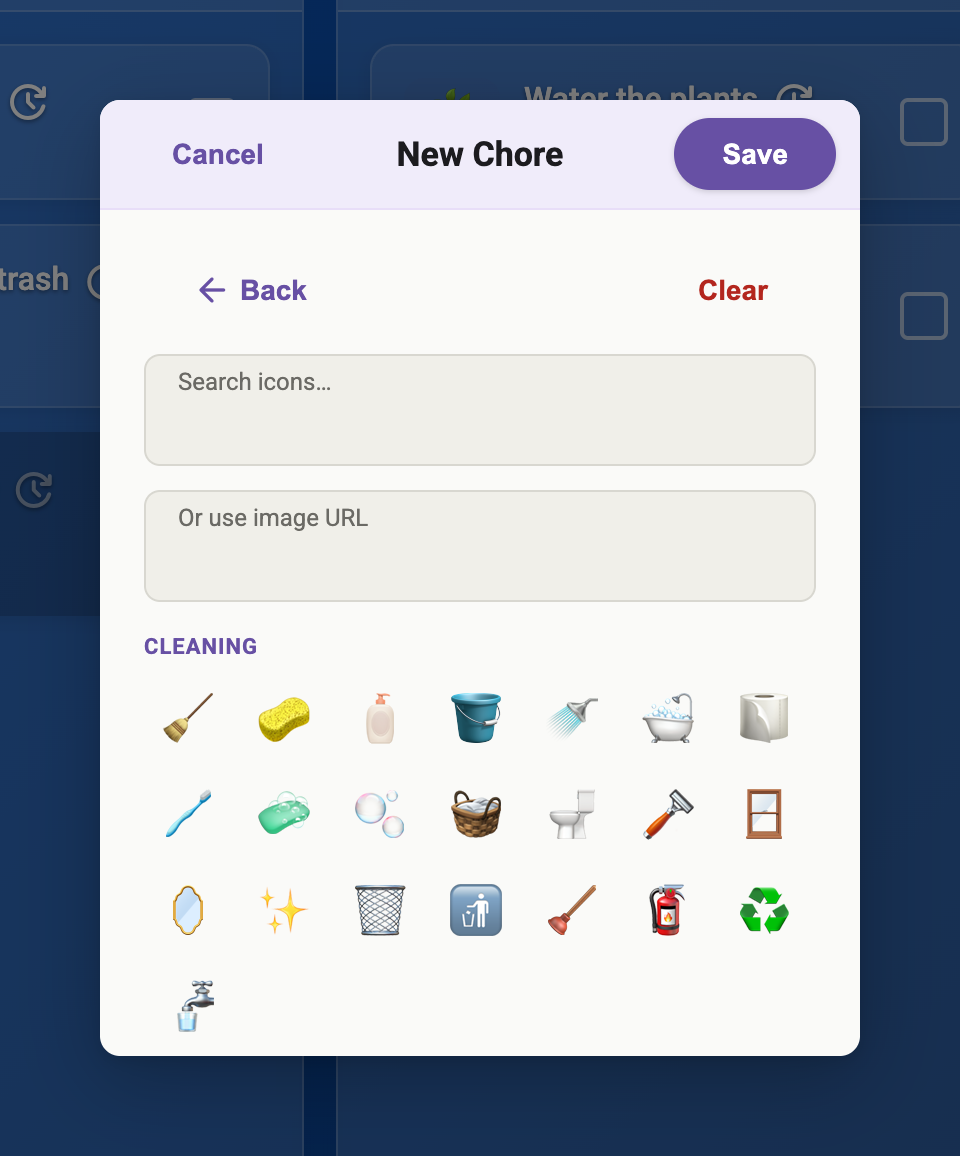
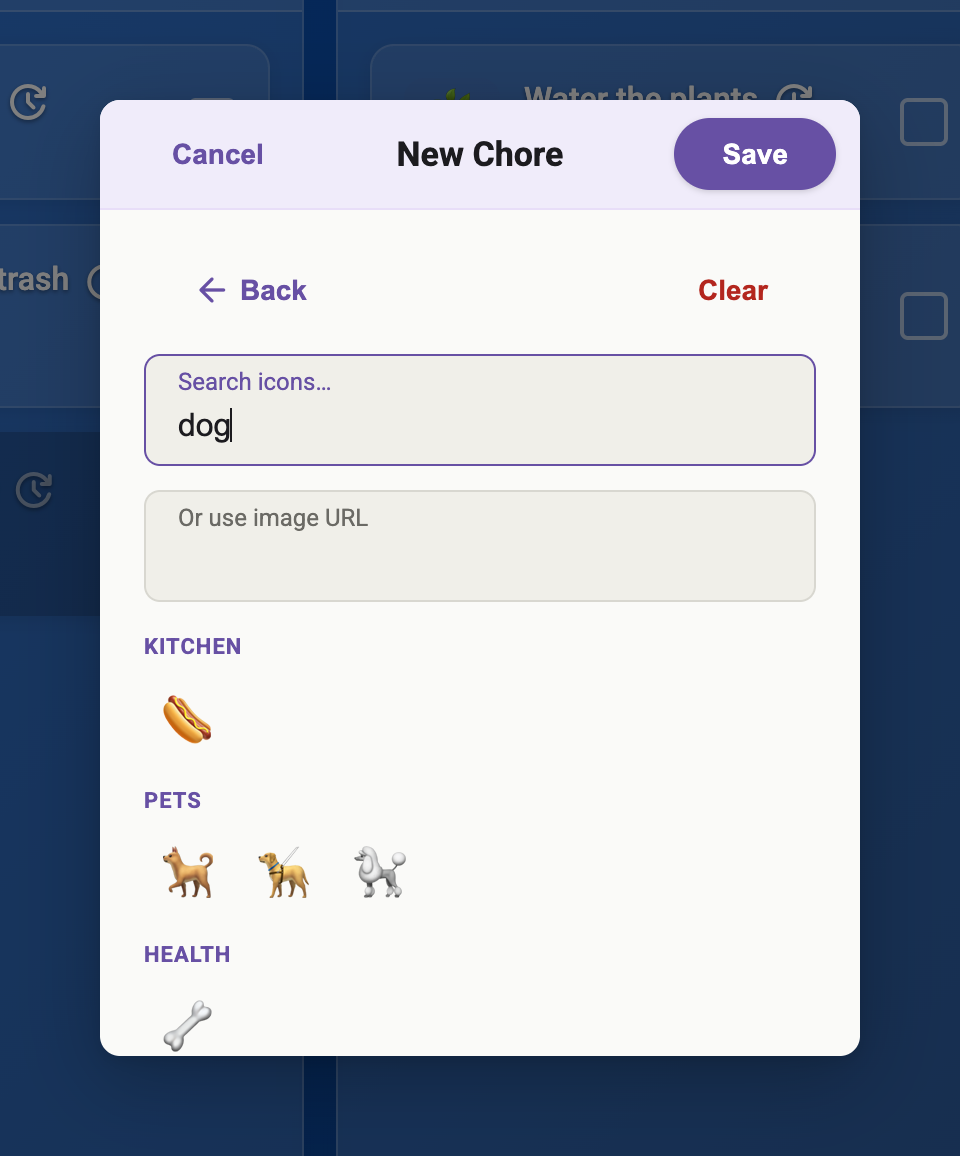
- Browse the categories, or search by typing a word.
- Tap any icon to choose it — the box slides back and shows a preview.
- Prefer your own image? Paste a link in “Or use image URL”.
- Clear removes the icon; ← Back returns without changing it.
Completing a chore
This is the satisfying part. To mark a chore done, tap it, or swipe it to the right. The person earns their points and a burst of confetti celebrates the win.
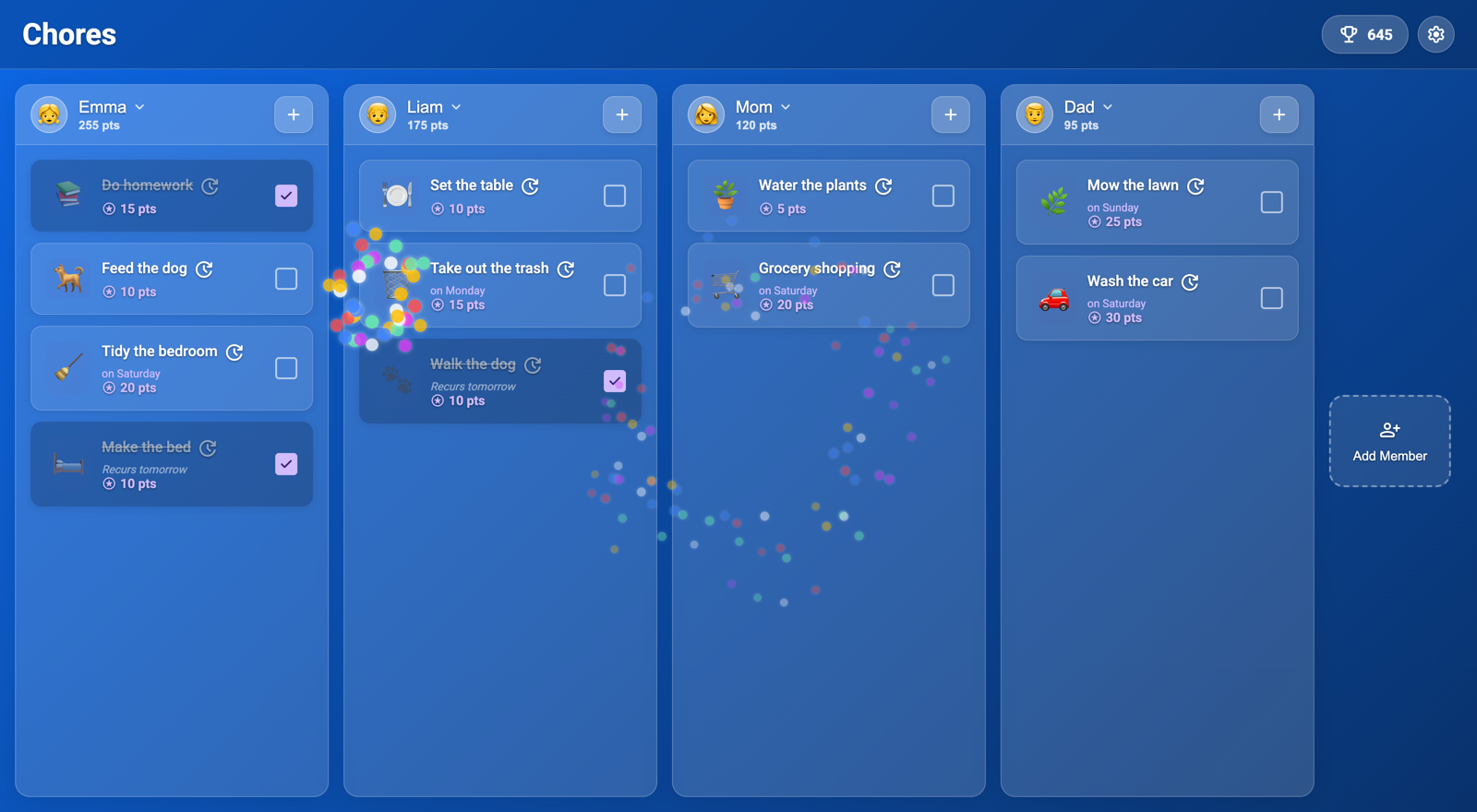
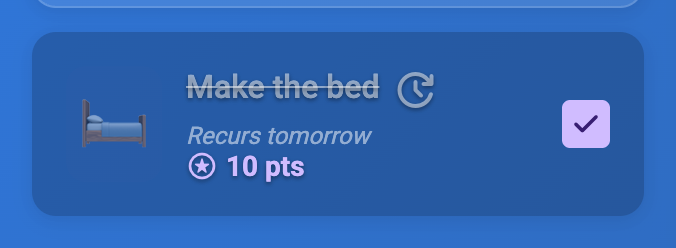
A finished chore gets a tick, dims, and slides down to the bottom of the list so the remaining jobs stay on top.
A Counter chore is a little different — each tap adds one to its tally rather than finishing it in a single go. See Counter chores below.
Editing a chore
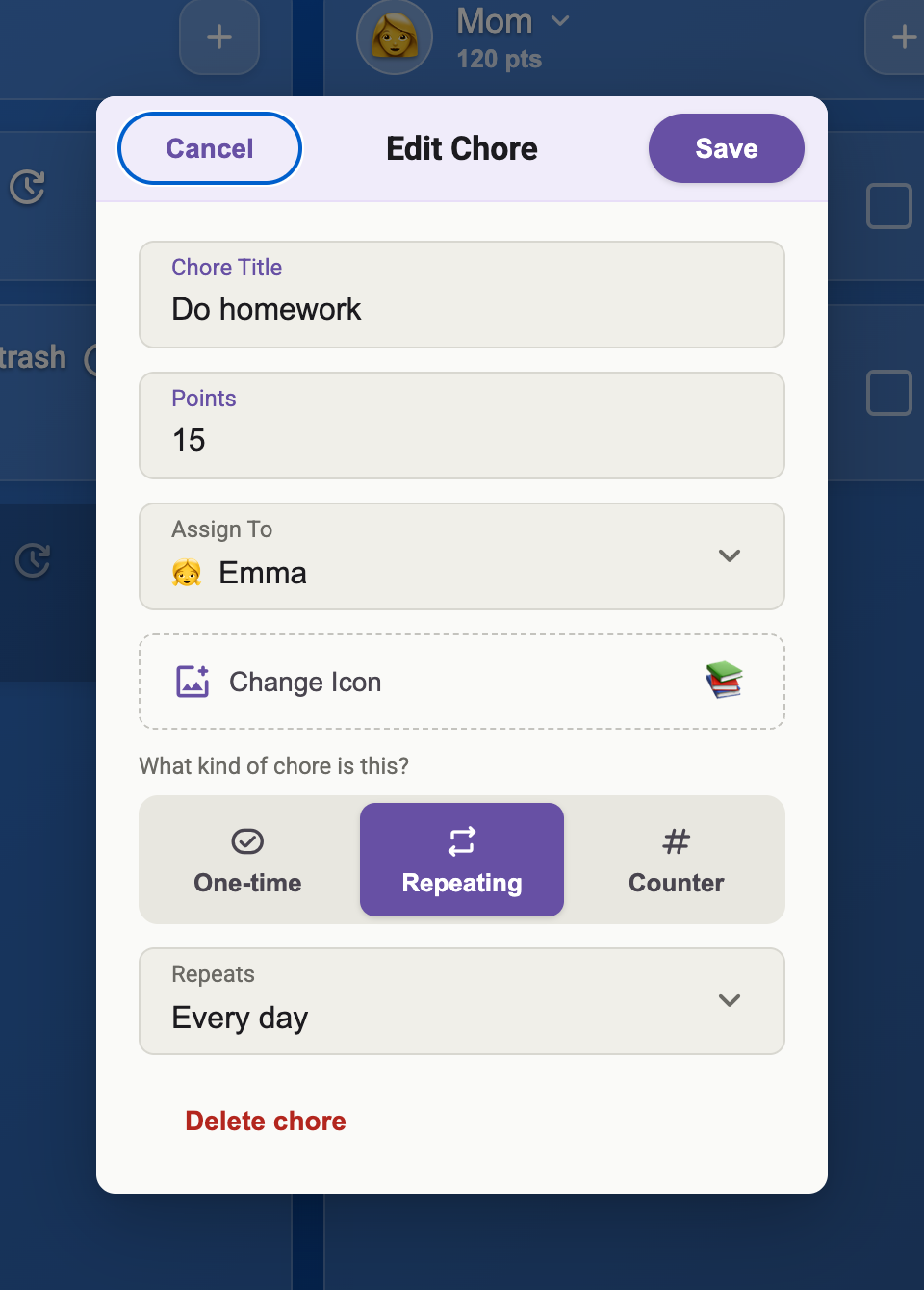
Press and hold a chore for about a second. It opens for editing with everything filled in — change the name, points, who it's for, how often it repeats, or its icon, then tap Save.
Deleting a chore
The quickest way: swipe the chore to the left to reveal a confirmation, then tap the red Delete button. (Changed your mind? Tap Cancel or swipe back right.)
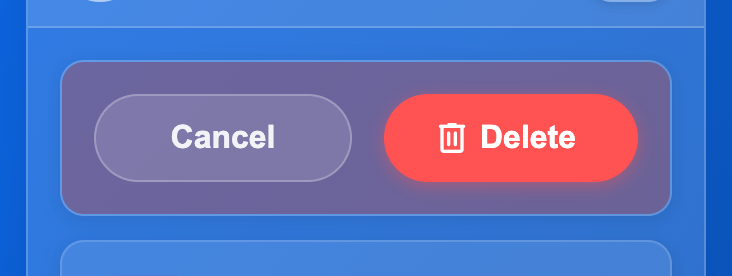
You can also delete a chore from the Edit box (press and hold, then tap the red Delete).
Repeating chores (daily, weekly…)
Most chores aren't one-offs — the dishes come back every night! Choose Repeating as the chore's type, then pick how often it should return. There are seven rhythms: Every few hours, Daily, Weekdays (Mon–Fri), Every other day, Weekly, Bi-weekly and Monthly.
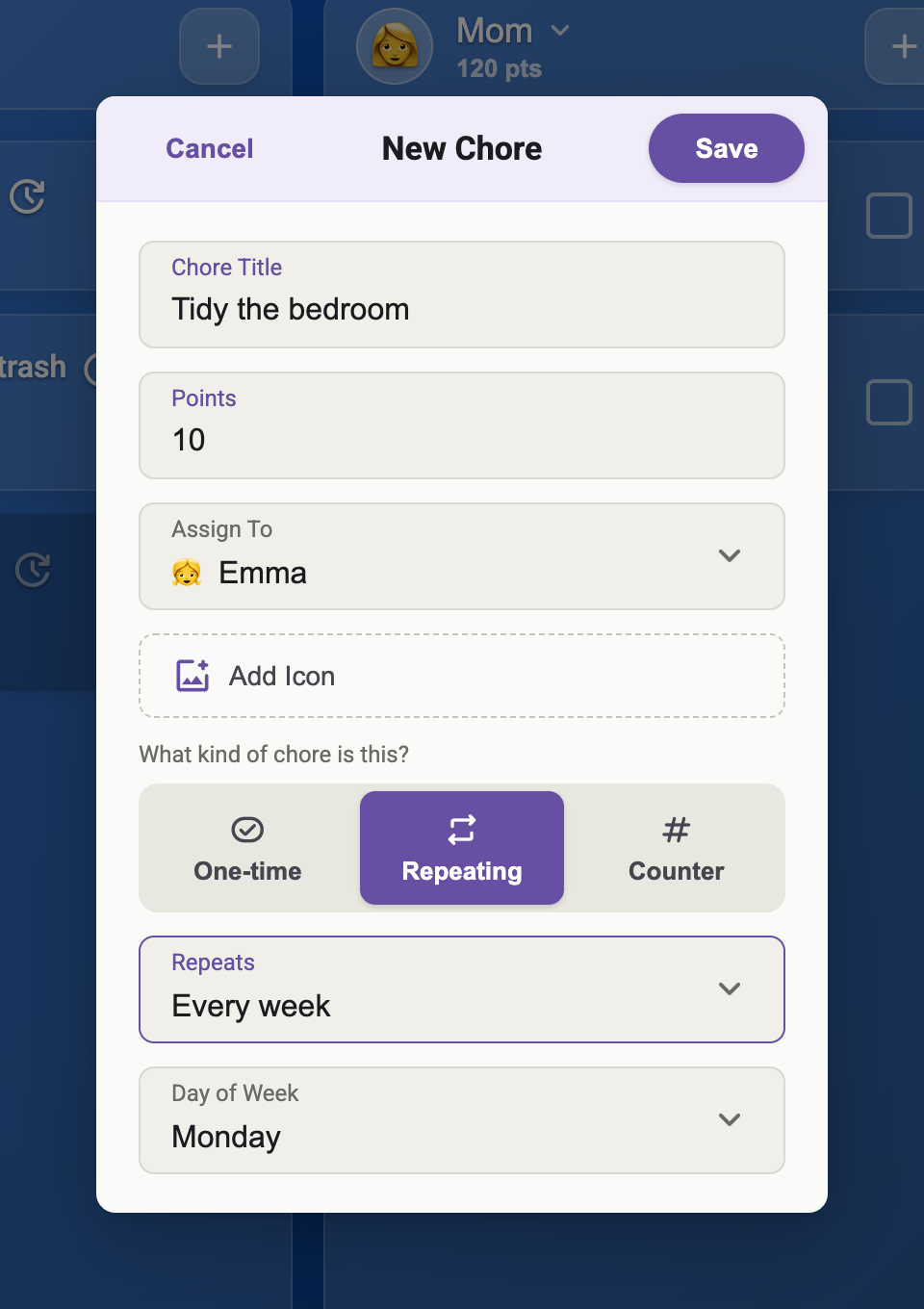
Some choices ask for a little more detail. Pick Weekly or Bi-weekly and the app asks which day of the week it's due:
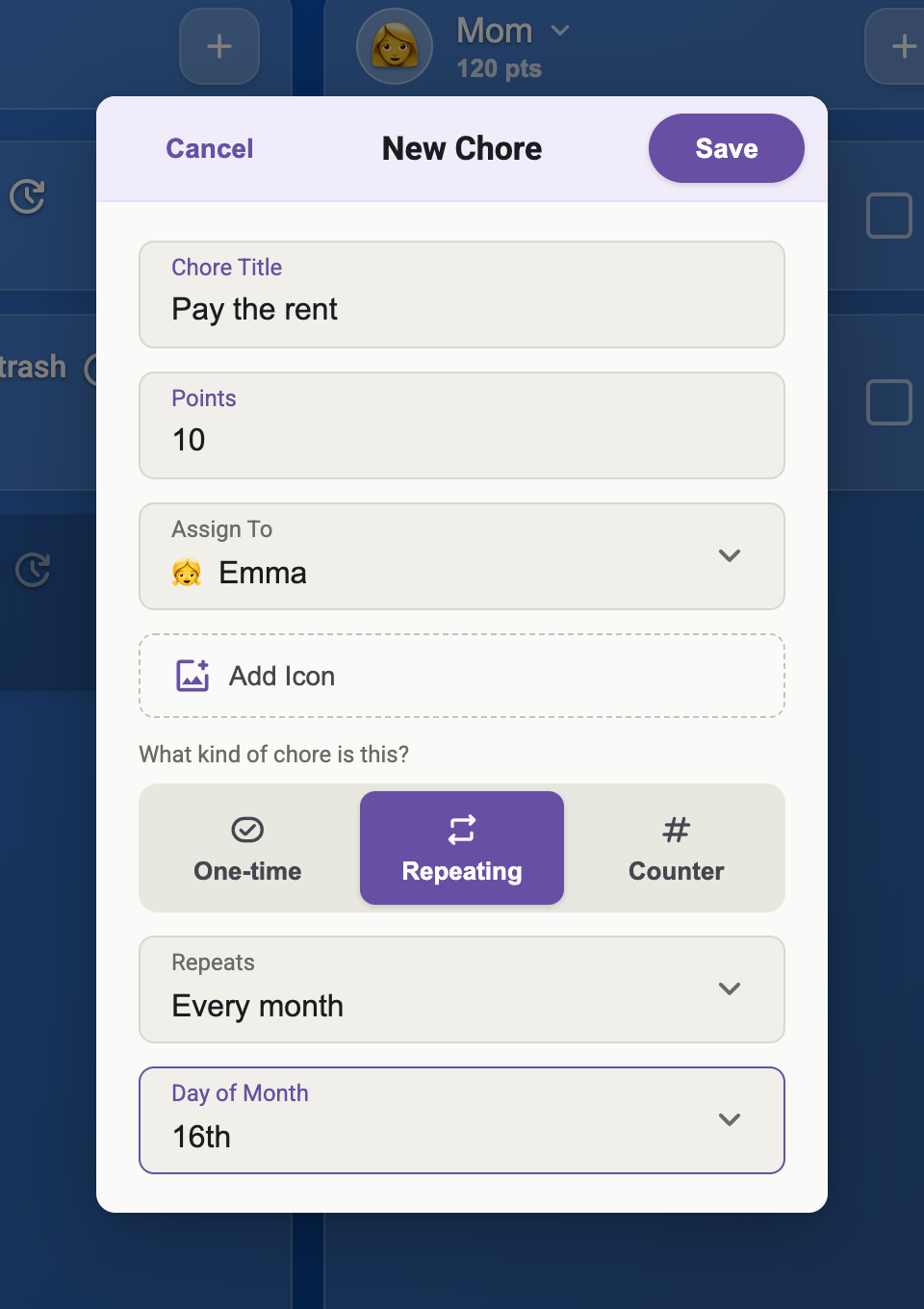
Pick Monthly and it asks which day of the month — so “pay the rent” can land on the 1st, the 16th, or any date you like (it starts on today's date):
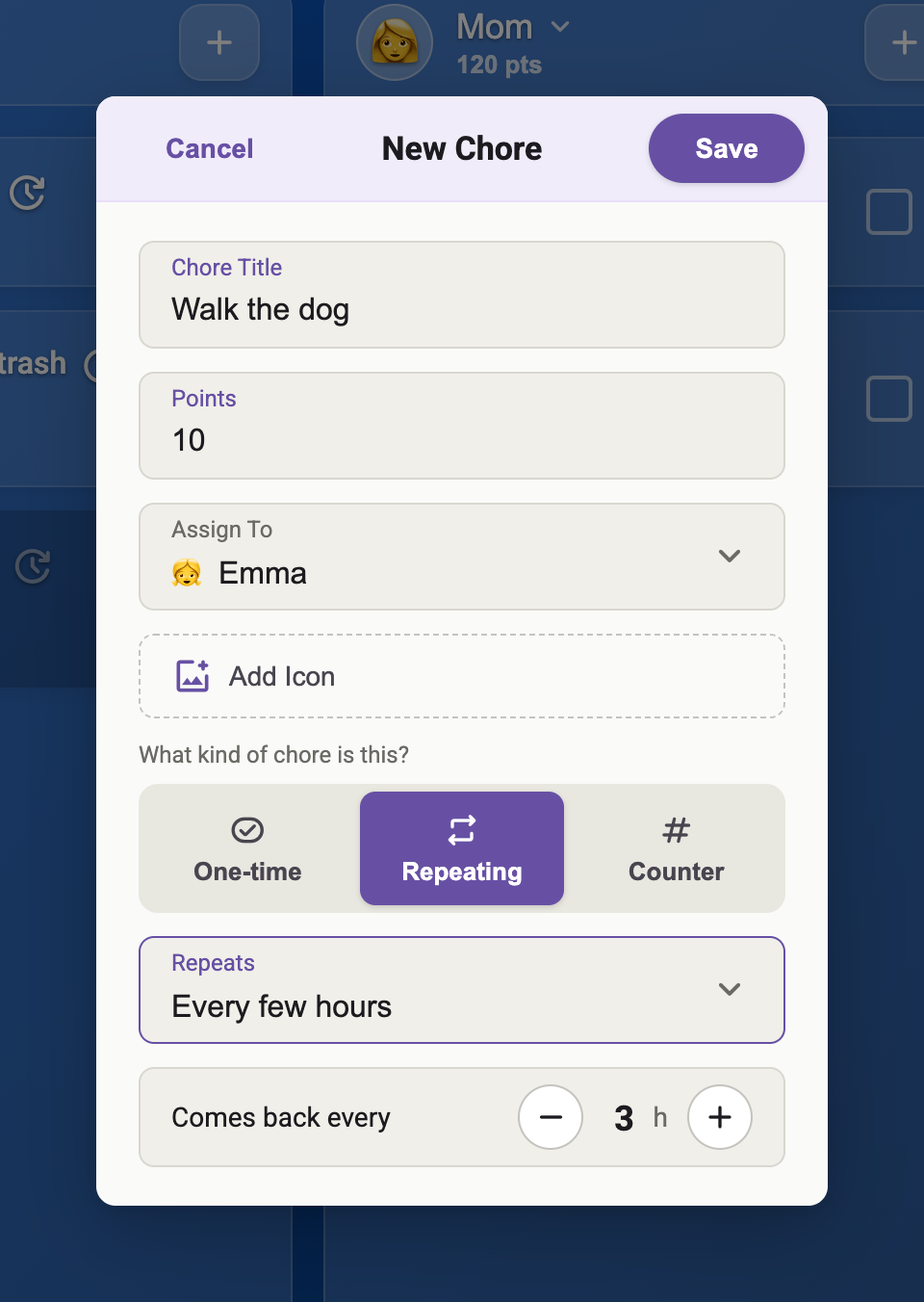
Need something more often than once a day? Pick Every few hours and say how many — the chore comes back that many hours after you finish it, so “walk the dog every 3 hours” returns three hours after each walk rather than at a fixed clock time:
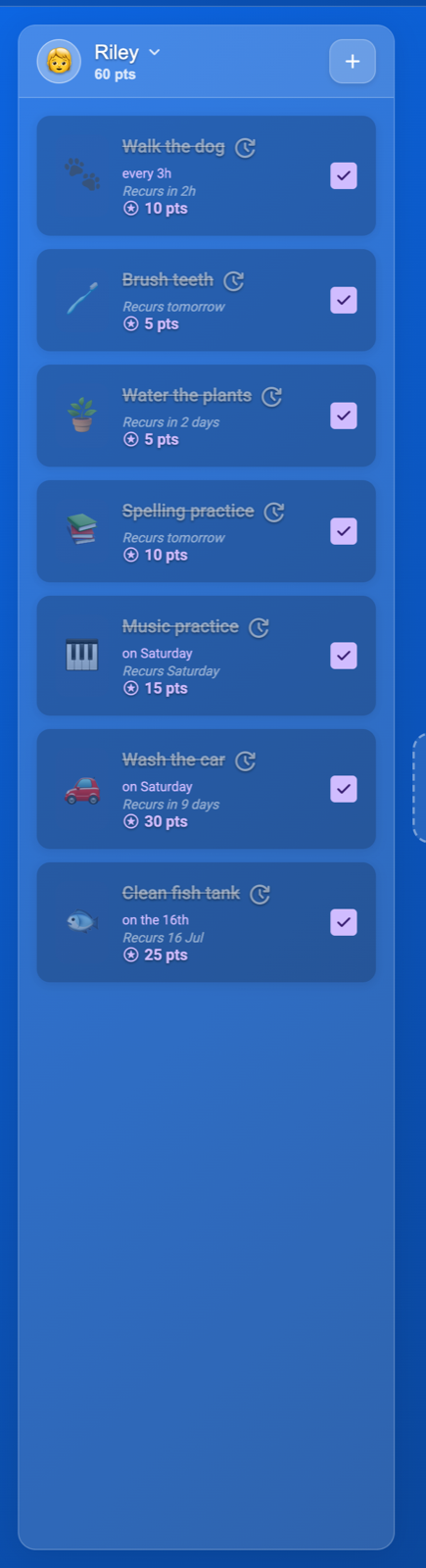
Once a repeating chore is finished, its card shows when it'll be back:
| Repeats | Comes back… | Example |
|---|---|---|
| One-time | Never — it's gone once done (a chore type, not a repeat) | “Tidy the garage” |
| Every few hours | A set number of hours after it's done — a cooldown, not a clock time | “Every 3h”, done 2pm → back 5pm |
| Daily | The start of the next day | Done tonight → back tomorrow morning |
| Every other day | Two days after it's done (skips a day) | Done Monday → back Wednesday |
| Weekdays (Mon–Fri) | The next weekday; never on weekends | Done Friday → back Monday |
| Weekly | On its chosen day, next week | “Wednesday” → back next Wednesday |
| Bi-weekly | On its chosen day, after two weeks | Done → back about a fortnight later |
| Monthly | On its chosen day-of-month, next month | “16th” → back on the 16th each month |
Counter chores (do it a few times)
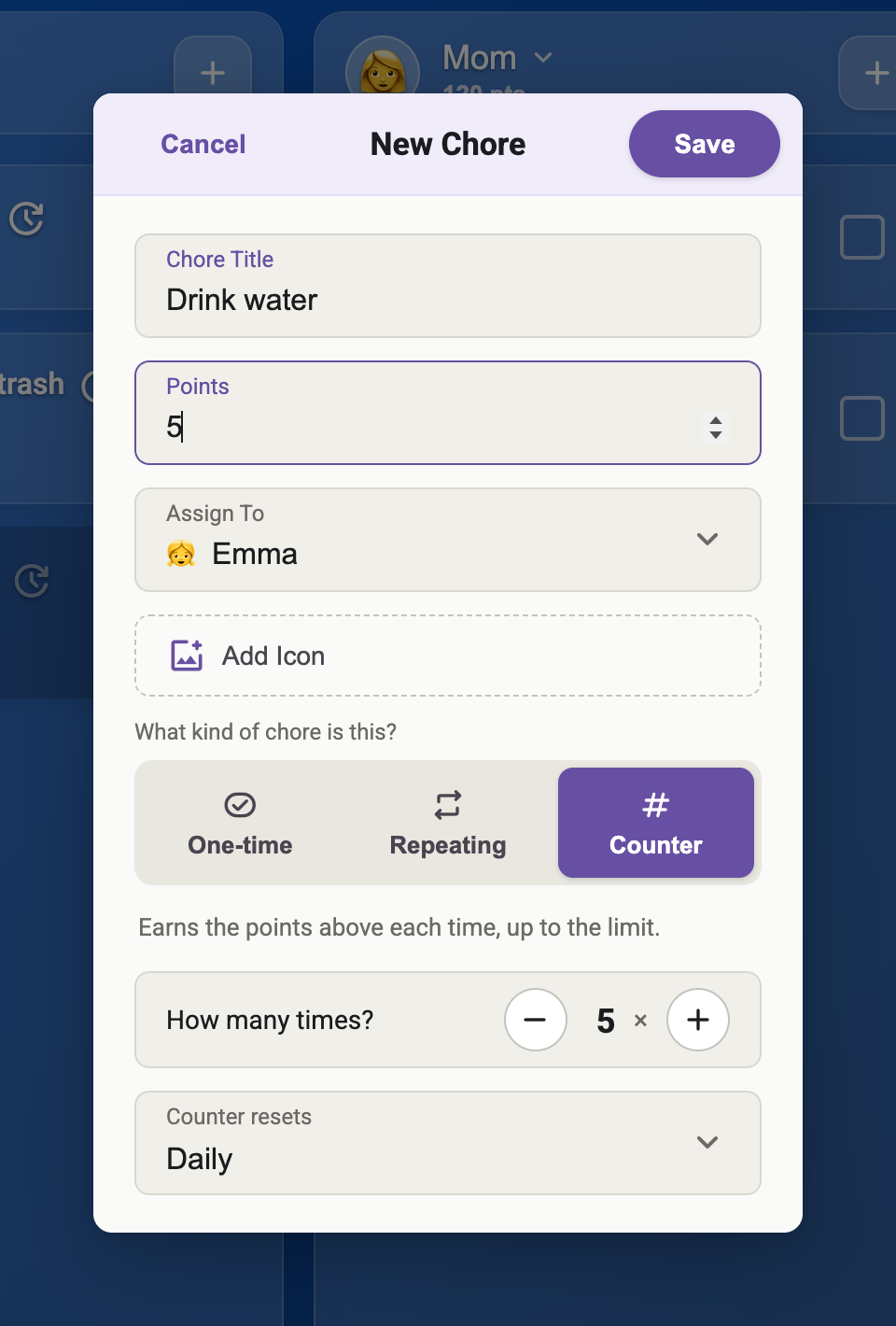
Some things aren't “done” until you've done them several times — five glasses of water, ten minutes of reading, three trips to carry in the shopping. Choose Counter as the chore's type, then say how many times and how often it starts over.
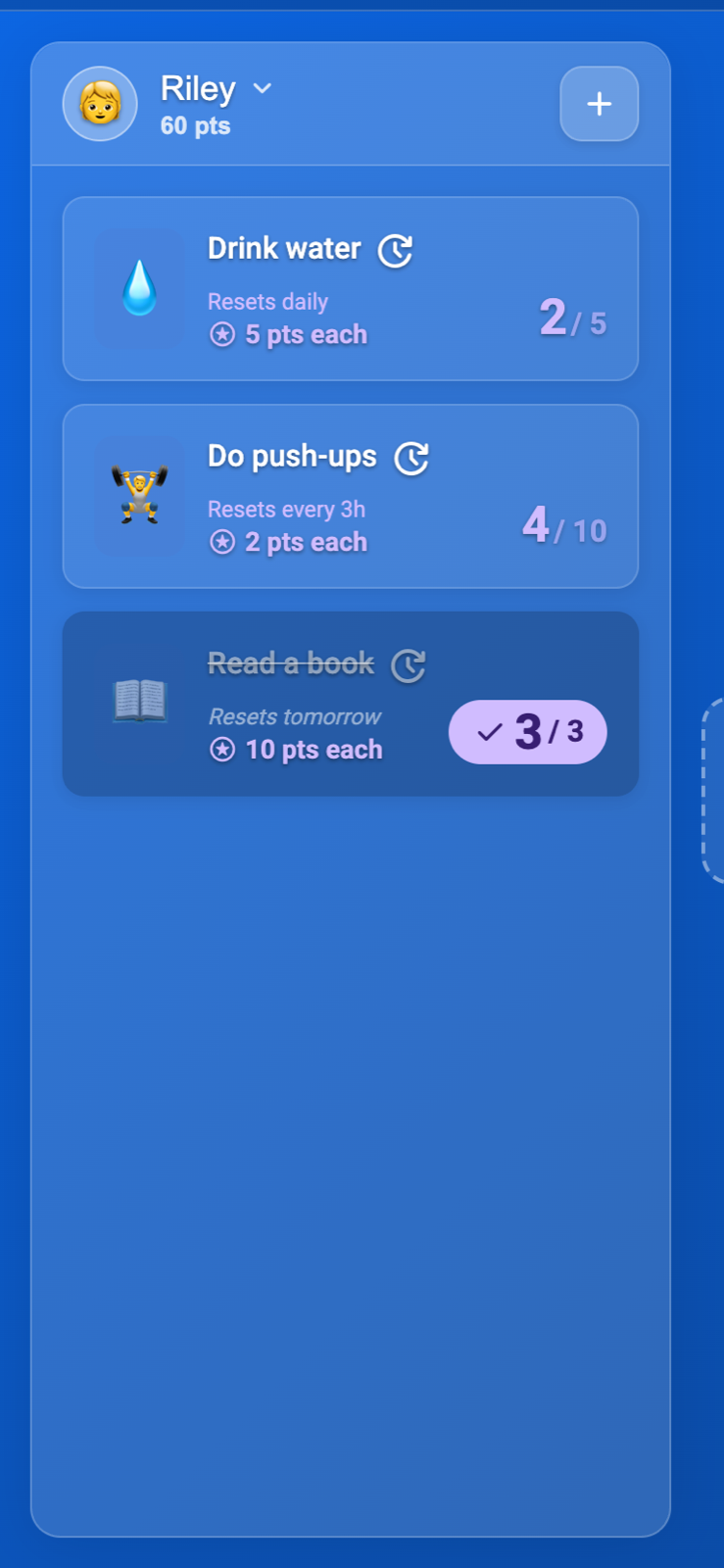
- Tap the card to add one. The whole card is the button — each tap bumps the tally and earns the points, so they read “N pts each”.
- When the tally reaches its goal the card gets a ✓ and slides down with the finished chores.
- The count starts over by itself on the schedule you chose — every few hours, daily, weekly or monthly.
Putting chores in your own order
New chores join the bottom of the list and finished ones sink down — but you can also arrange a person's chores into any order you like.
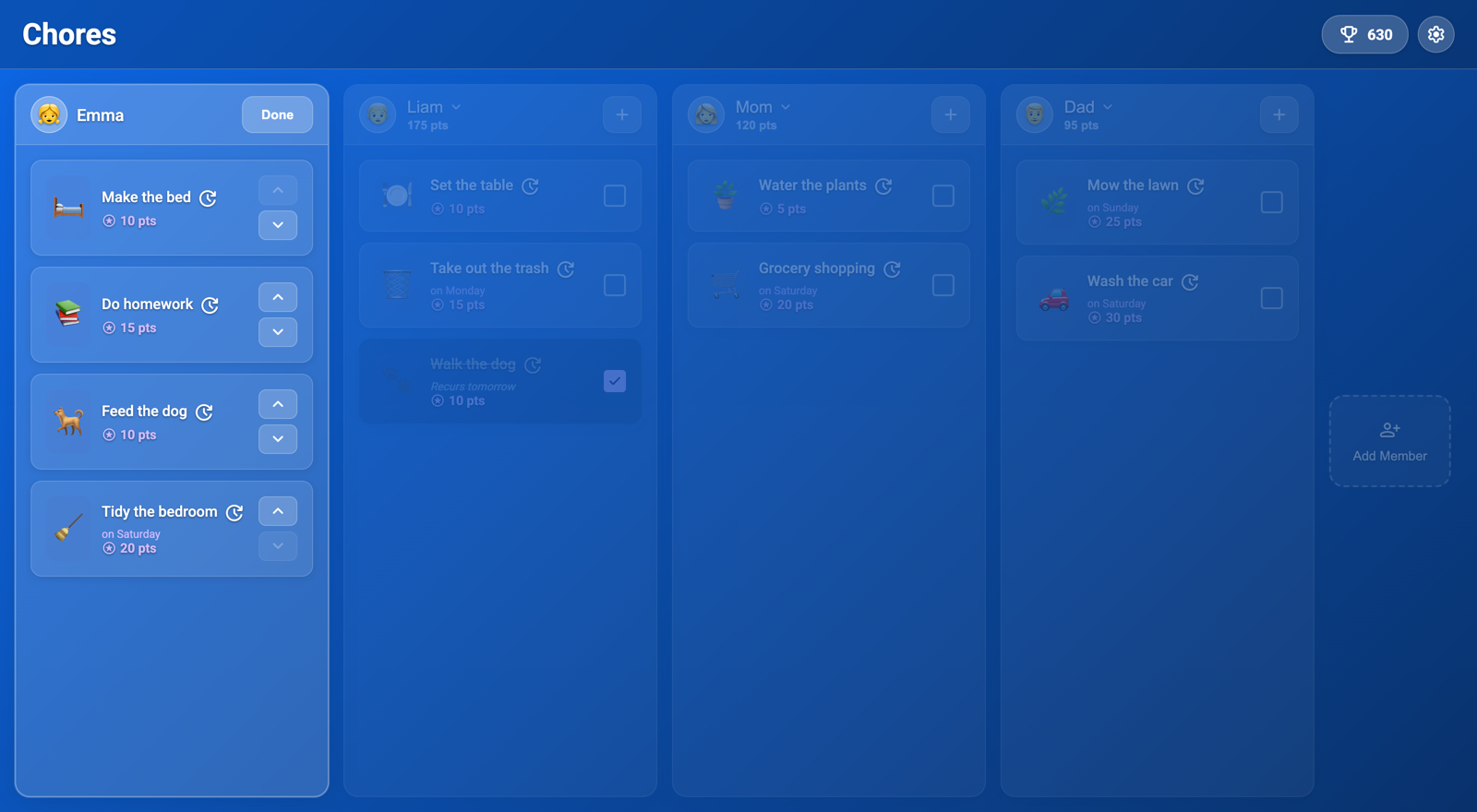
- Tap the person's name and choose Reorder chores.
- Use the ▲ / ▼ arrows to move each chore up or down. It saves as you go.
- Tap Done when you're happy. (It also finishes on its own after a minute if you wander off.)
Your order is saved for everyone and shows on every device.
5 Points & Rewards
Turn finished chores into a bit of friendly competition and real-world treats.
The leaderboard
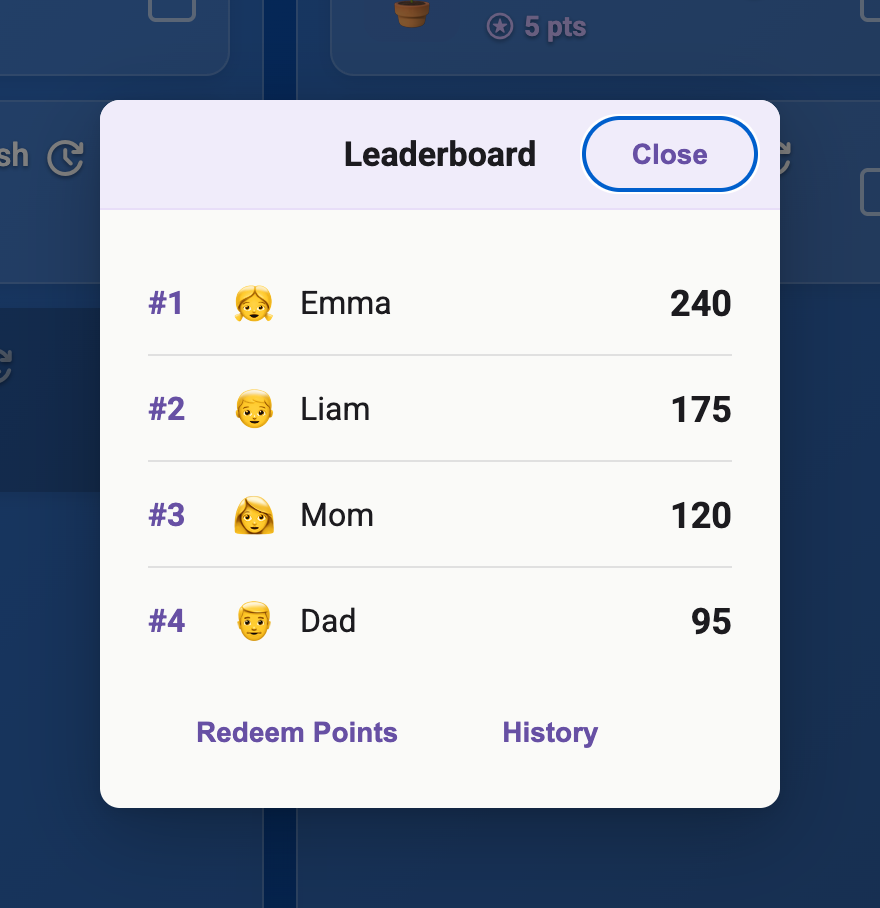
Tap the trophy in the top-right corner. The leaderboard ranks everyone by the points they've earned, highest first. (The number on the trophy itself is the family's grand total.)
Redeeming points for rewards
Points are meant to be spent! Decide together what they're worth — screen time, a treat, a day out — and cash them in here.
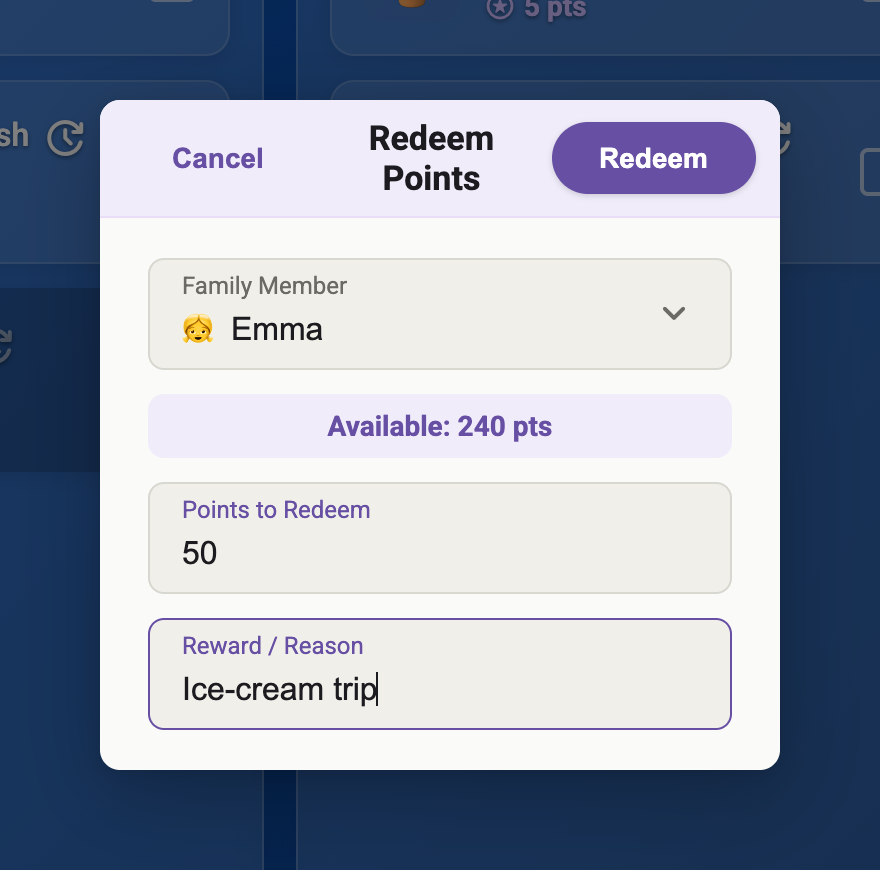
- Open the leaderboard (the trophy), then tap Redeem Points.
- Choose the family member — their available balance shows automatically.
- Enter the points to spend (no more than they have) and a short reason.
- Tap Redeem. The points come off and the reward is saved to the history.
Reward history
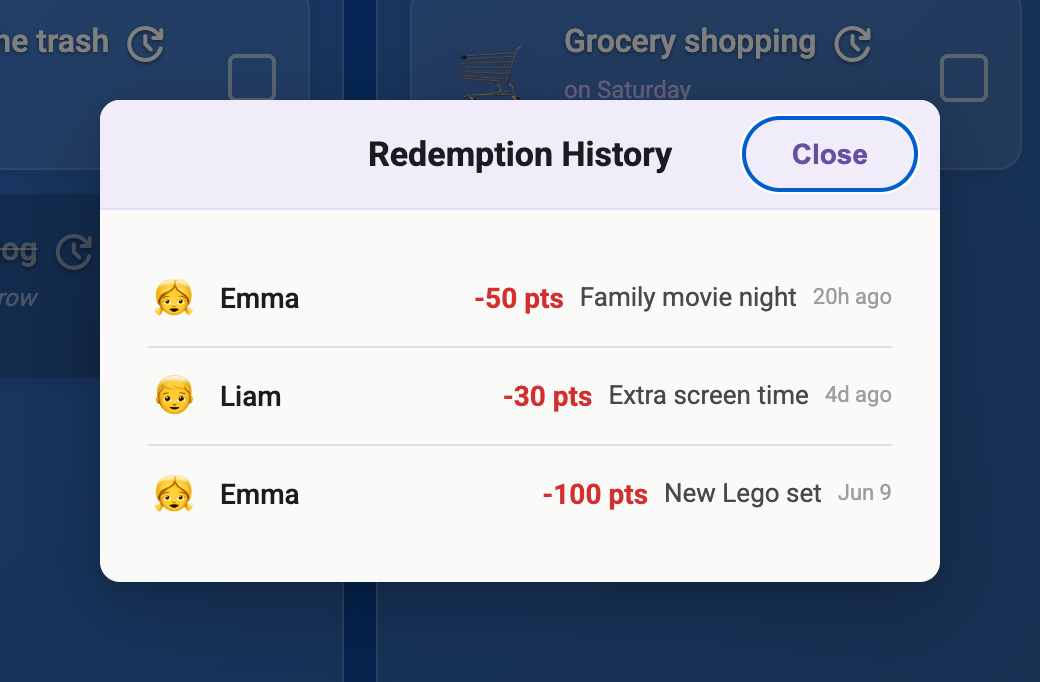
Curious what's been cashed in? Open the leaderboard and tap History for a list of past rewards, newest first — who, what, and when.
Turning points off
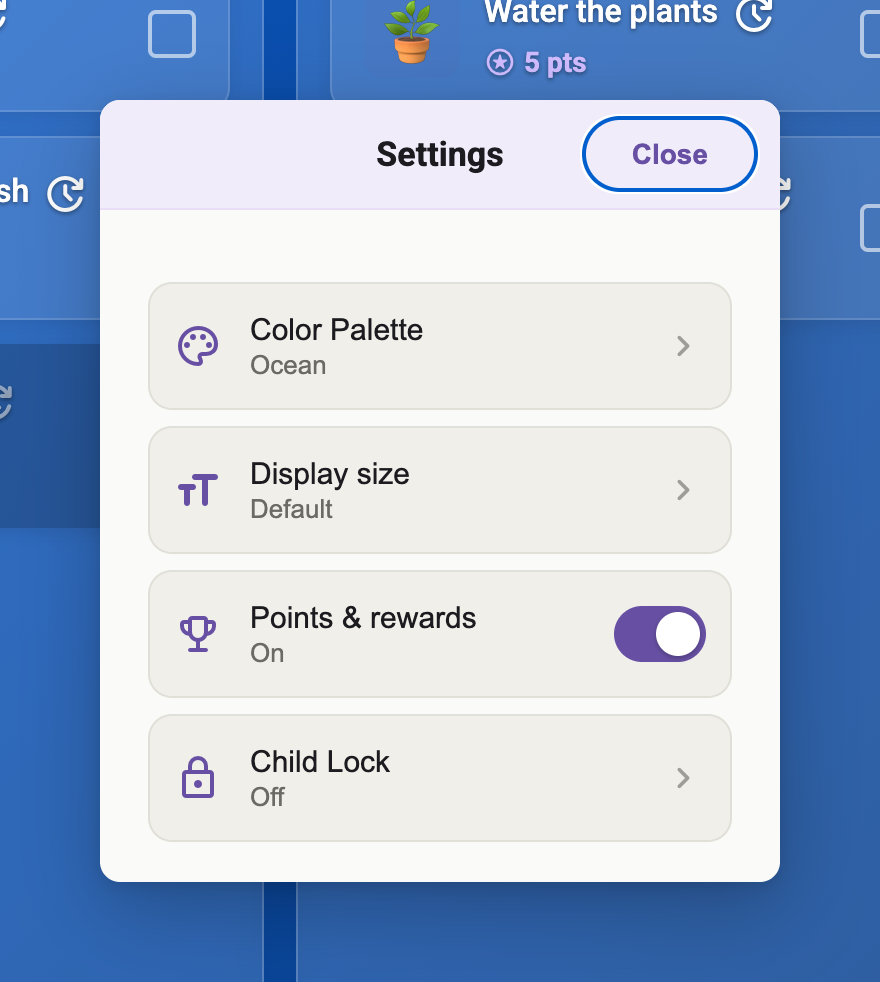
Not every family wants points. If you'd rather use the app as a plain shared checklist, you can switch the whole points system off in Settings → Points & rewards.
Ticking chores off still works (confetti included!) — it simply doesn't count points. Switch it back on any time and every point total returns, untouched.
6 Make It Yours
Settings, colour themes, and building a look of your own.
The Settings menu
The gear in the top-right opens Settings. It's a short, friendly menu — each row is a setting. Today it holds your colour theme, the points switch, and Child Lock.
Colour themes
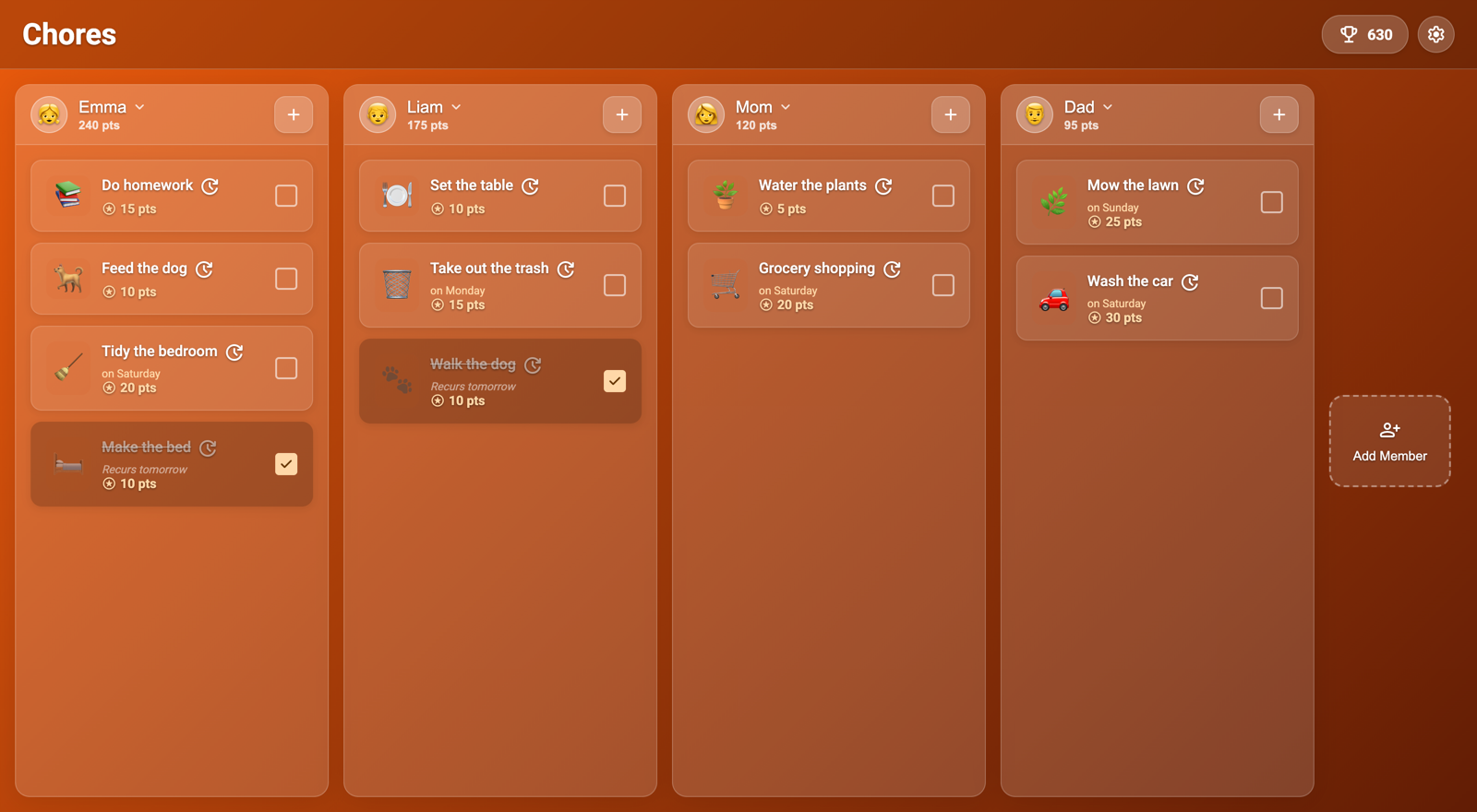
Tap Color Palette in Settings to pick from ten ready-made themes — eight rich dark ones plus two light ones (Cream and Elegant White).
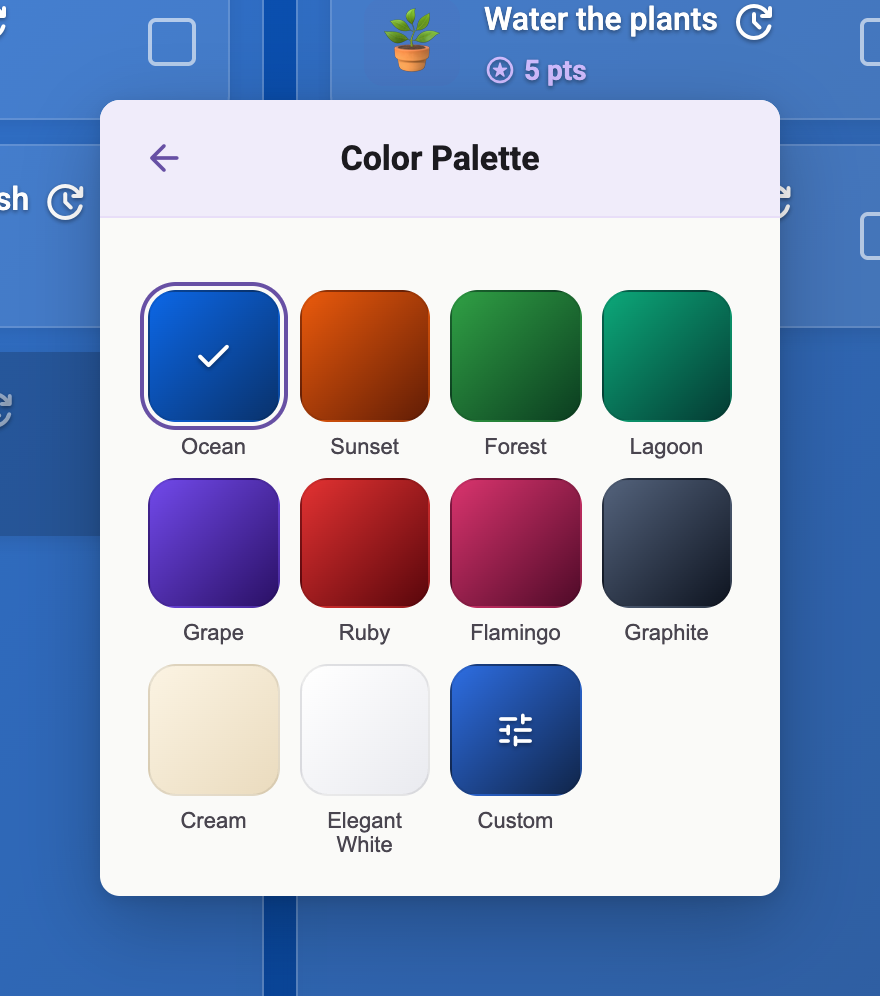
The app recolours the moment you tap — and Settings deliberately stays see-through, so you can preview each theme against your real board before deciding:
Your own colours
None of the themes quite right? Tap the Custom tile to mix your own. You get three colour pickers:
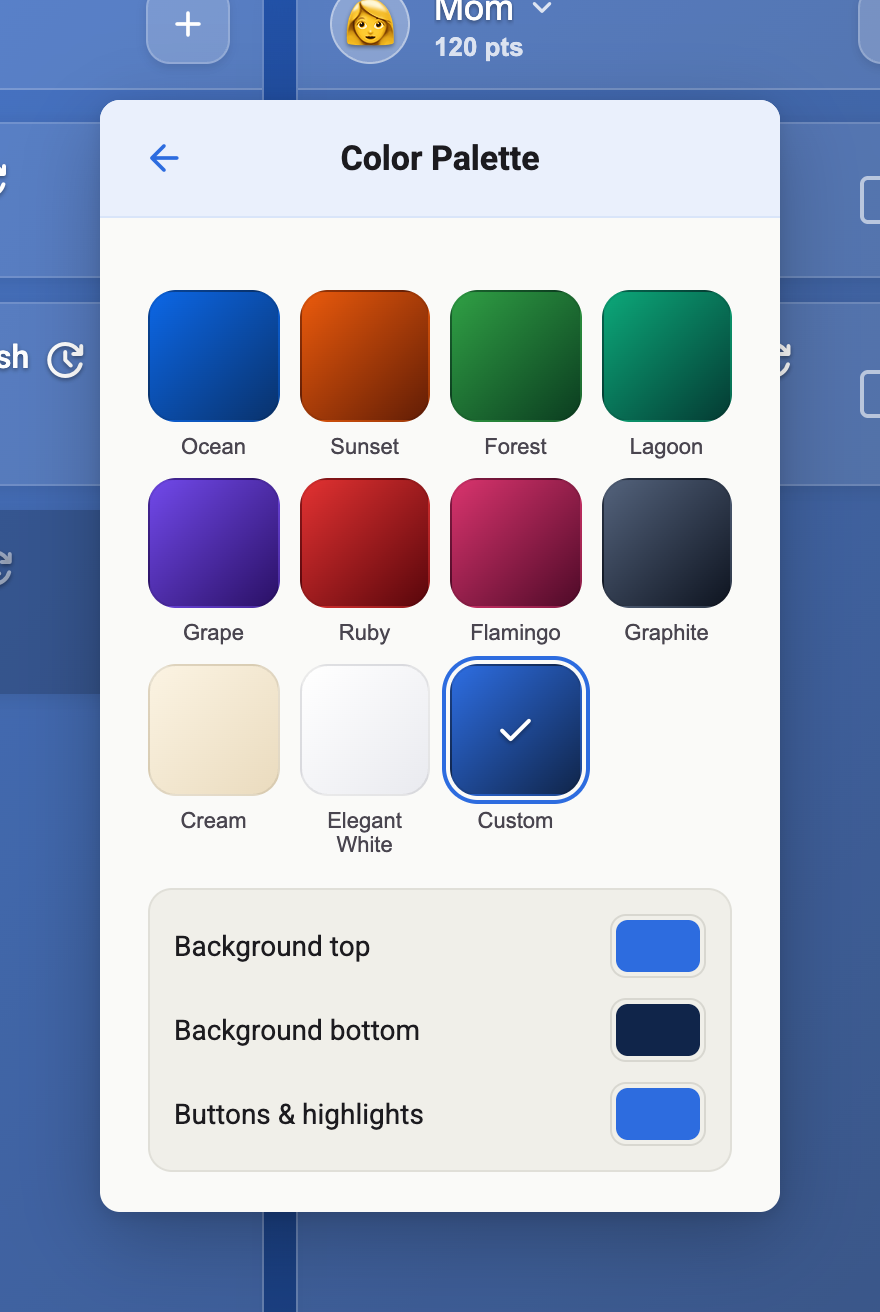
- Background top and Background bottom — the two ends of the background blend.
- Buttons & highlights — one accent colour for buttons, points, and selections.
It recolours live as you tinker. Choose a light background and the app cleverly flips the text dark so everything stays easy to read.
Bigger or smaller text (Display size)
Tap Display size in Settings to scale the whole screen — text, cards, buttons and all — to one of five sizes. Choose a bigger size when the board needs to be read from across the room, or a compact size to fit more chores on screen at once.
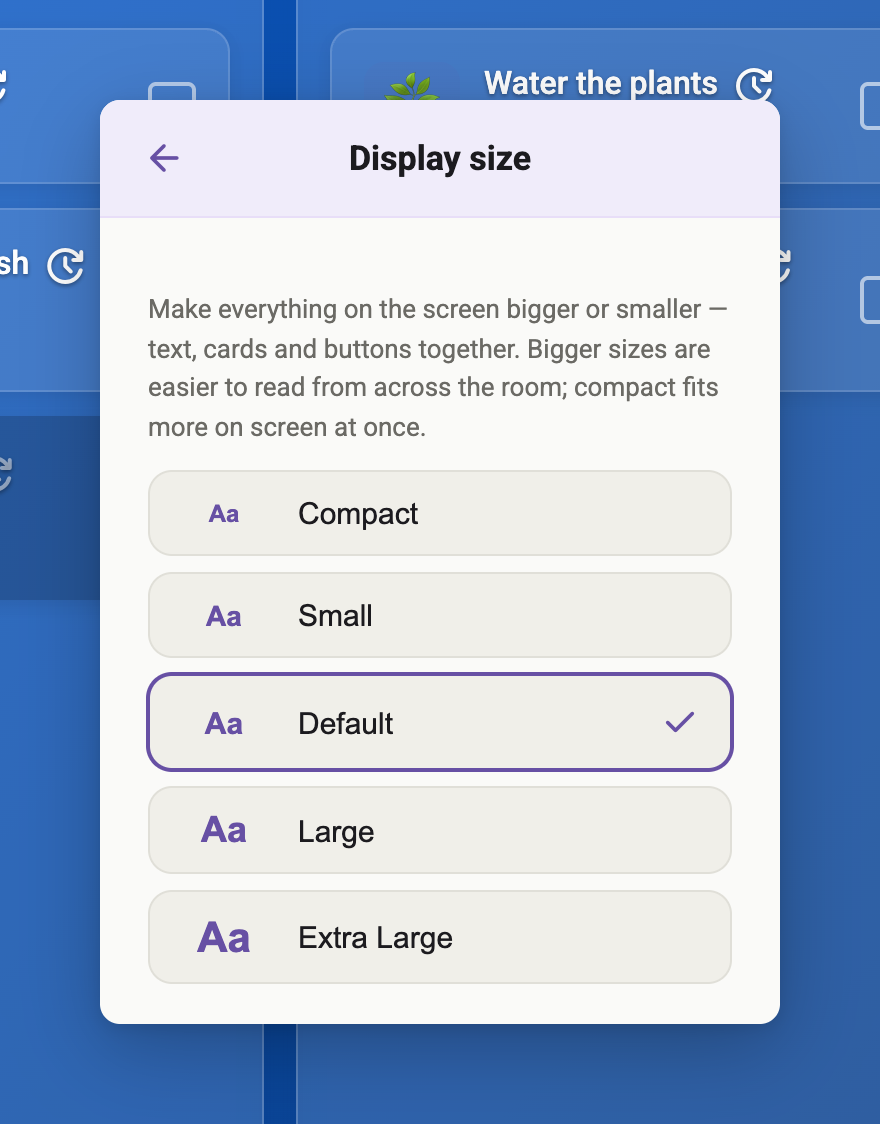
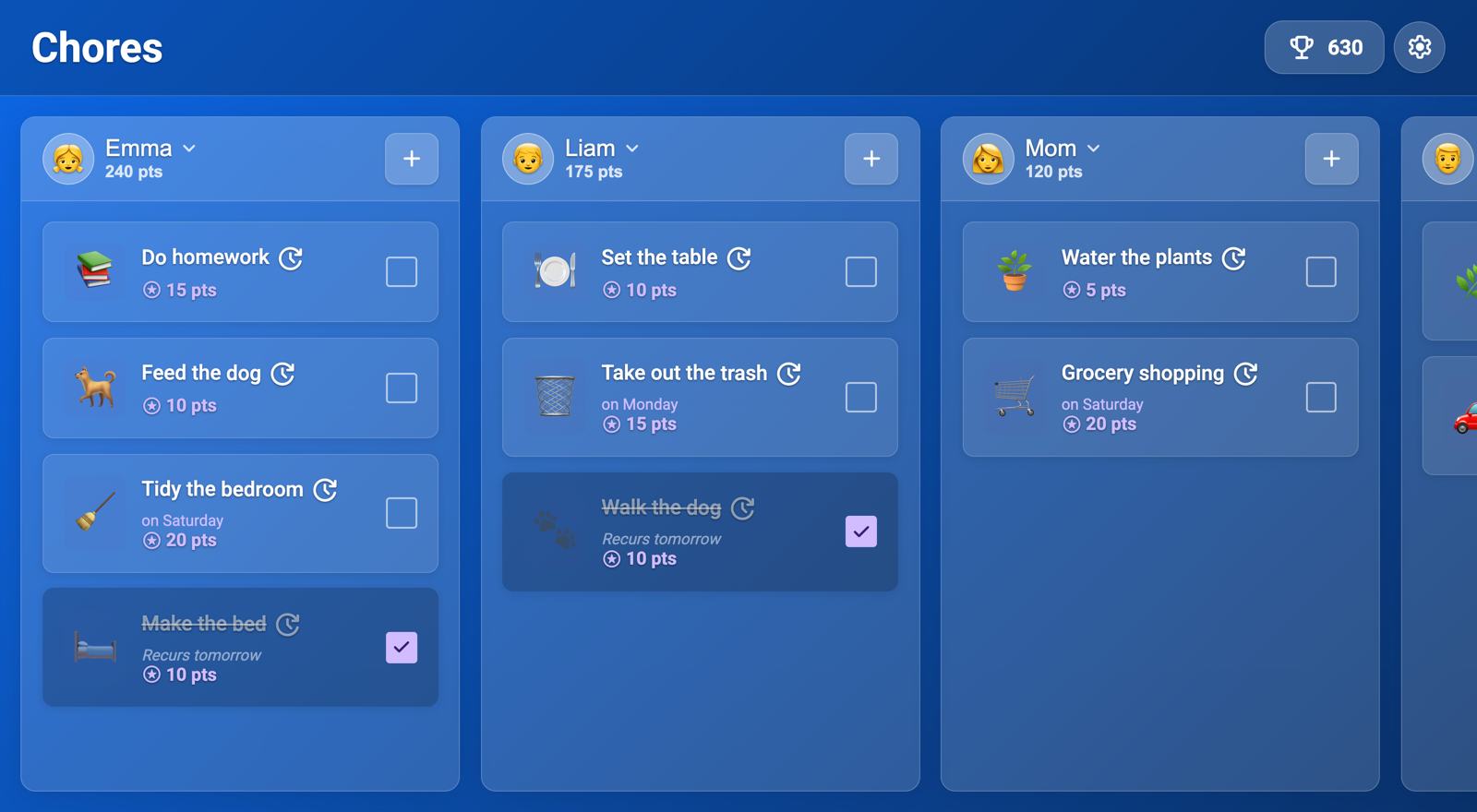
Your choice is saved and shared with every device on the same family, so a wall tablet and a phone can each show your chores at a comfortable size. The middle Default size is the original look.
7 Child Lock
Let little ones tick chores off without changing anything else.
Turning on Child Lock
Child Lock limits the screen to ticking chores off only — perfect for a shared kitchen tablet so a young child can't add, delete, or rearrange things by accident.
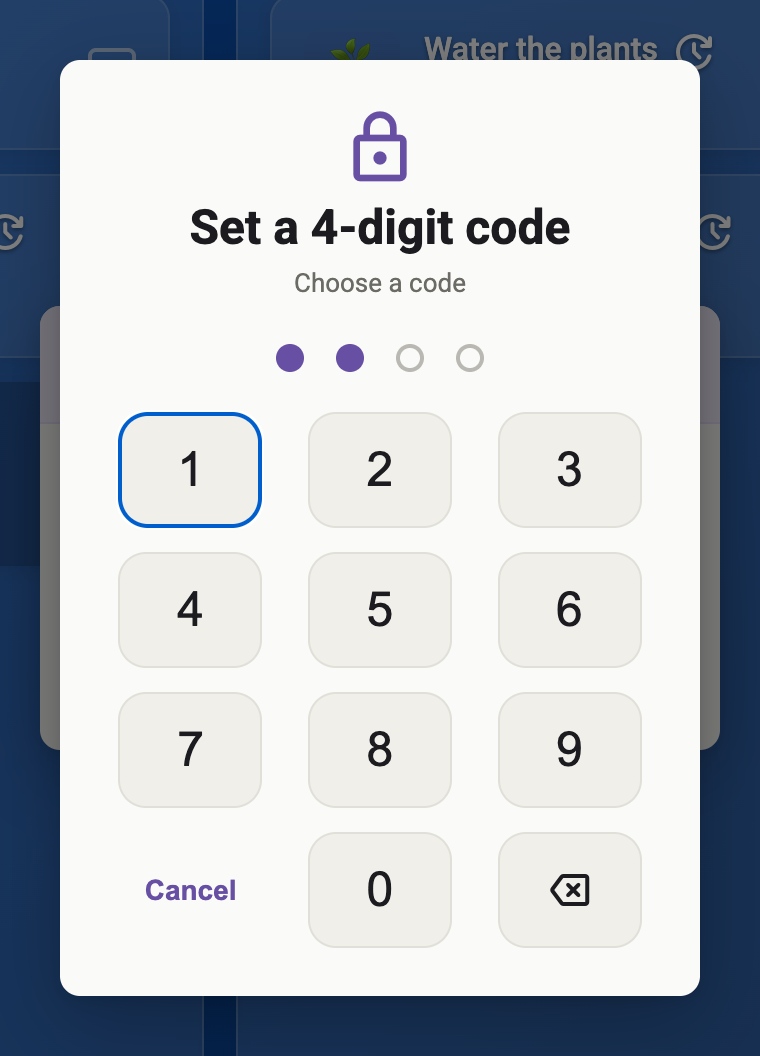
Go to Settings → Child Lock → Set up child lock, then enter a 4-digit code twice to confirm. The screen locks straight away.
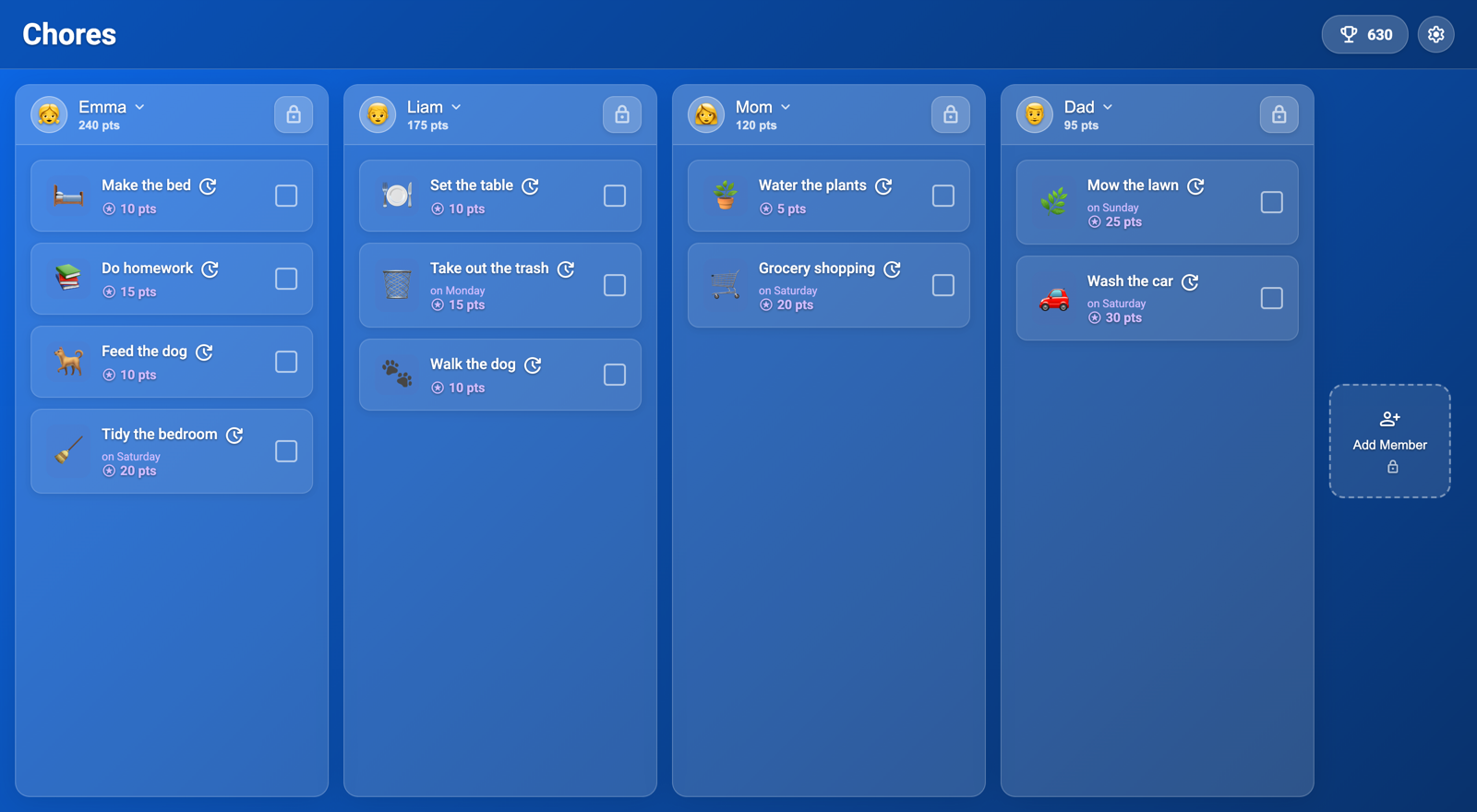
What a locked screen looks like
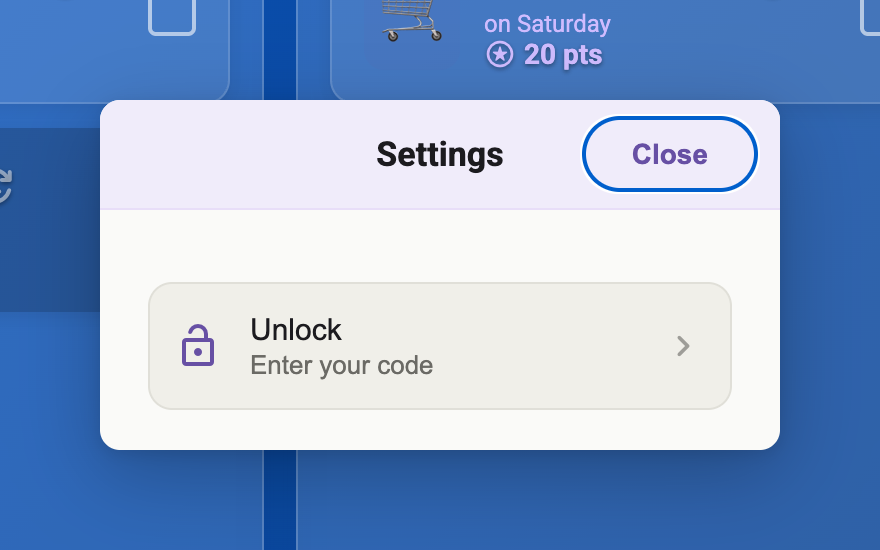
Locking doesn’t hide anything — the board looks completely normal, so nobody thinks it’s broken and goes hunting for missing buttons. Tapping a chore still ticks it off (or un-ticks it), just like always. Everything else — the “+”, the member menu, Add Member, editing a card — now wears a small 🔒, and tapping it simply brings up the keypad so you can pop in your code. Nothing changes behind your back; it just asks for the code first.
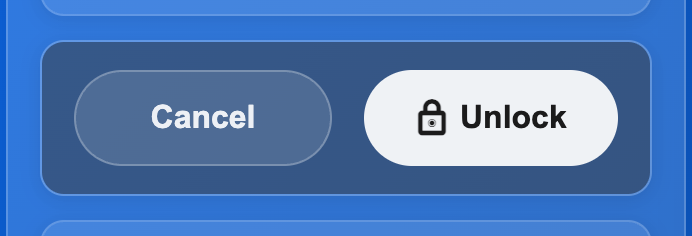
A few friendly touches: the “+” turns into a lock of the same size (so the board doesn’t shift around), the leaderboard still opens so the kids can admire their points, and swiping a chore to delete opens the usual panel but offers Unlock in place of Delete. Settings, meanwhile, shows only an Unlock row. Enter the code from any of these and the thing you were reaching for simply carries on.
Unlocking & managing the lock
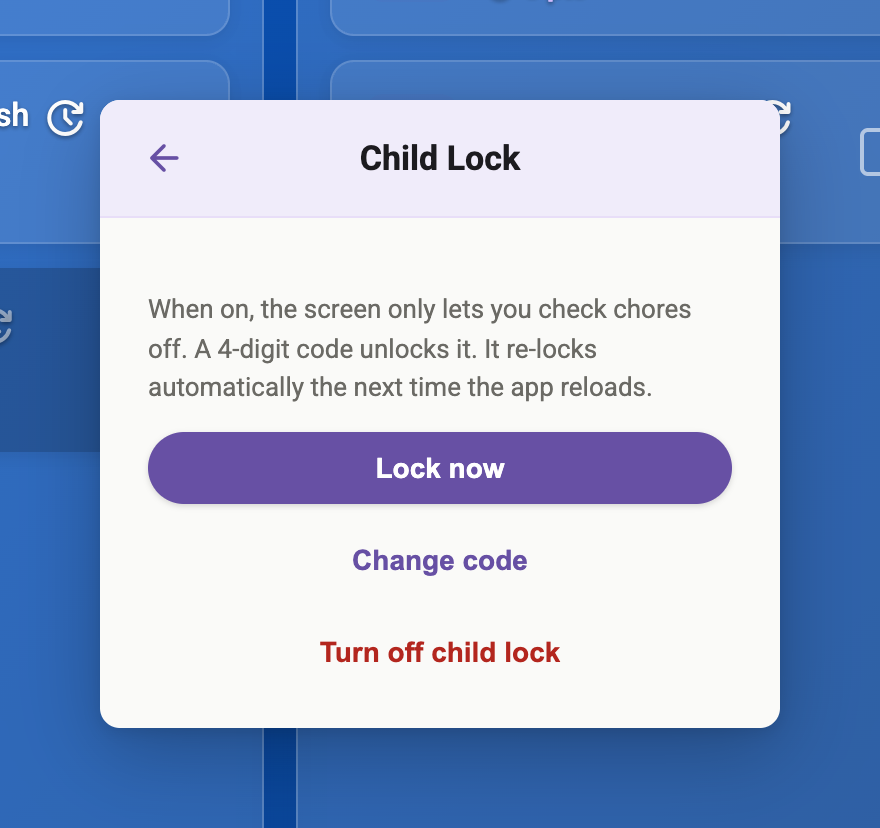
To unlock, open Settings → Unlock and tap in your code. Once unlocked, the Child Lock panel lets you Lock now, Change code, or Turn off child lock.
8 Tips for Families
Getting the most out of the Chores app on your DAKboard screens.
Using it on several devices
If your DAKboard is open on more than one screen, a change made on one shows up on the others by itself. It isn't instant — each screen quietly checks for updates every few minutes — so allow a little time for, say, a chore Dad ticked off in the kitchen to appear on the hallway screen.
Wall tablets & kiosks
Your DAKboard is built to run all day on an always-on screen — a kitchen wall tablet, a Touch Hub display, and the like. The Chores app is designed for exactly that:
- It refreshes itself overnight (around 3 a.m.) to stay fast and tidy. If someone's in the middle of something at that exact moment, it politely waits and tries again.
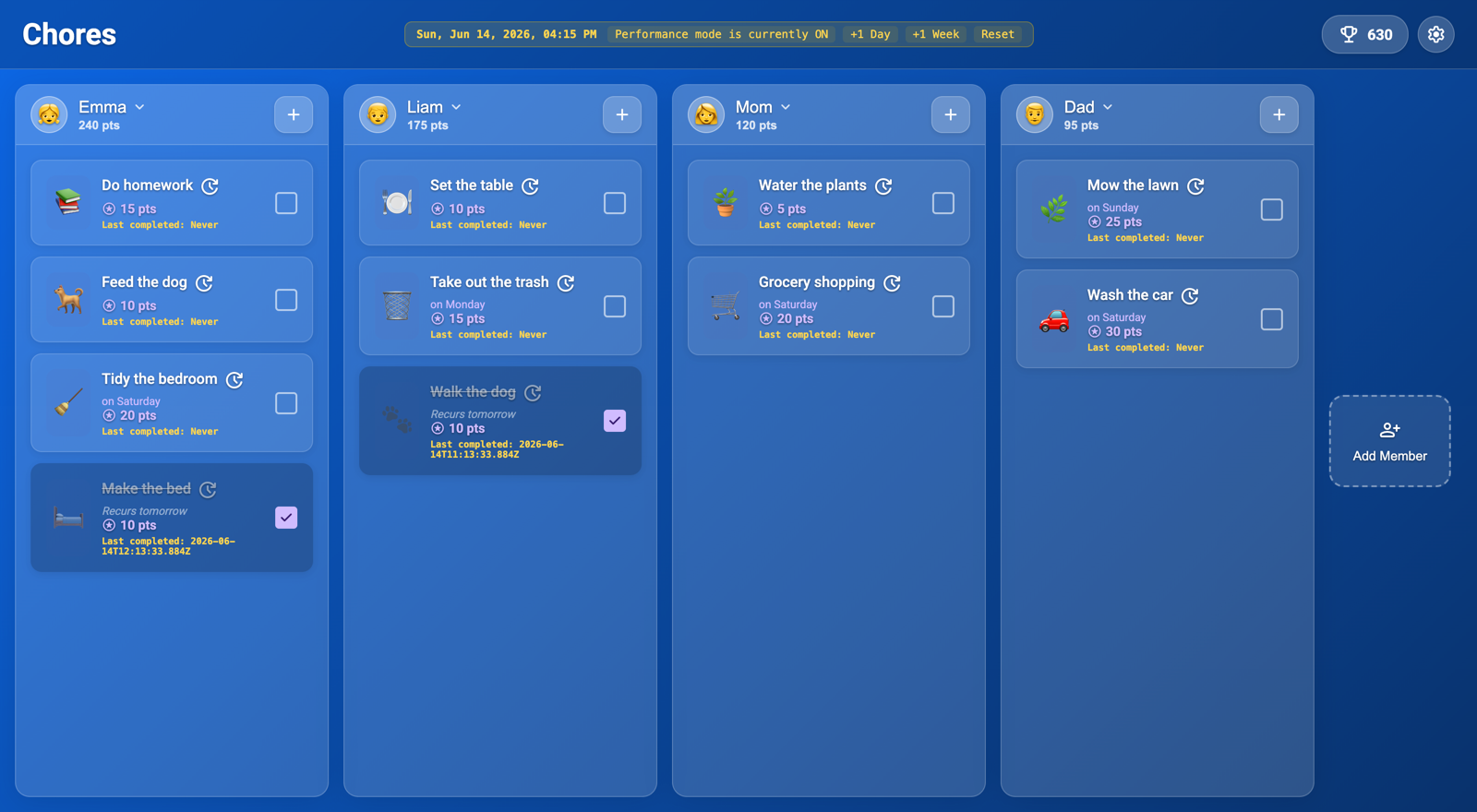
- Performance mode keeps things smooth on small, low-power devices by simplifying some of the fancy “frosted glass” effects. It's on by default. On a powerful phone or computer you can turn it off (in the hidden controls below) to enjoy the full glassy look.
The hidden time controls
This one is for the curious. Triple-tap the word “Chores” in the top-left and a little amber bar appears. It lets you jump the clock forward (+1 Day, +1 Week) to see how repeating chores come back, flip Performance mode, and Reset the clock again.
9 Questions & Answers
Quick answers to the things families ask most.
How do we get the Chores app onto our DAKboard?
It's added through your DAKboard Touch Hub settings. Once it has been added, it appears on your DAKboard device automatically and is ready to use — there's nothing to install.
How do we all see the same chores?
It's part of your DAKboard, so the same chore board shows wherever your DAKboard is open. Changes you make on one screen sync to the others within a few minutes.
I ticked a chore off by mistake — can I undo it?
Yes. Tap the finished chore again to un-tick it; any points it earned are removed automatically.
A chore I finished is back again — is that a bug?
Almost certainly not — it's a repeating chore doing its job. Daily chores return the next day, weekly ones on their chosen day, and so on. If you don't want it to repeat, press and hold the chore, set Recurrence to One-time, and Save. See §4 Repeating chores.
Why didn't my change show up on the other screen straight away?
Each screen refreshes itself every few minutes, so there's a short delay. To see the latest right away, refresh your DAKboard on that screen. See §8 Using it on several devices.
Can we use it without the points and leaderboard?
Absolutely. Open Settings → Points & rewards and switch points off to use the app as a plain shared checklist. Your point totals are kept safe and return if you switch points back on. See §5 Turning points off.
How many people can we add?
Up to six family members. When you reach six, remove someone to make room for another.
We forgot the Child Lock code. What now?
For safety, there's no “reset code” button inside the app — that would just let a child get around the lock. Contact DAKboard support and they'll help you clear it so you can set a new code.
Does it keep working without internet?
Your DAKboard needs a connection to load and to save your changes so your other screens stay in sync. It copes gracefully with a brief hiccup, but keep the device online for everyday use.
Can I put a real photo on someone instead of an emoji?
Yes — when adding or editing a member, paste a photo link into the “Or use image URL” box and it'll be used as their picture. The same trick works for chore icons.
That's the whole guide. Enjoy a tidier, happier household — and don't forget to spend those points! 🎉