
Build a Raspberry Pi Family Calendar the Whole House Can Read
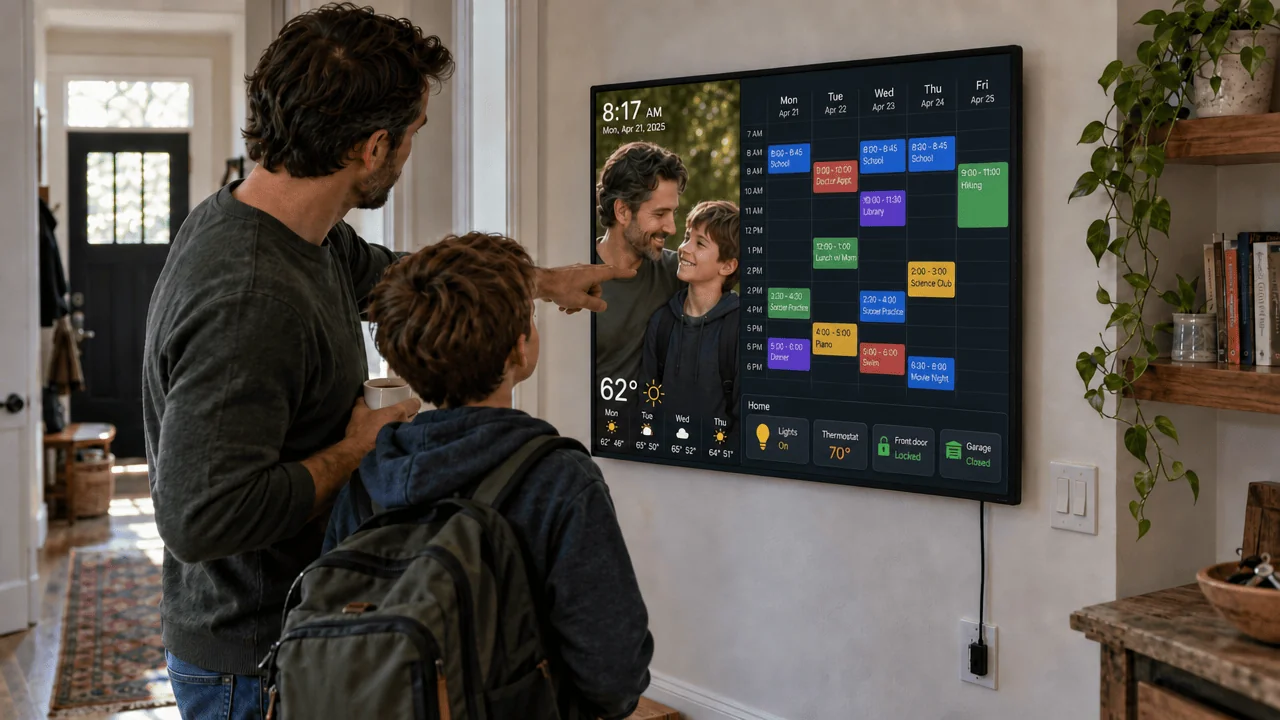
Flash DAKboard OS onto a microSD card, plug your Raspberry Pi into any monitor or TV, and your calendars, photos and weather are on the wall. No scripts to babysit, no cron jobs to fix when an API changes, and nothing to rebuild when a service updates.
DAKboard OS is completely free to download, forever. No credit card needed.
A spare monitor, a Raspberry Pi behind it, and the week on the wall.
Loved by 300,000+ Families Worldwide
What a Raspberry Pi Calendar Display Can Show
Your Raspberry Pi family calendar doesn't have to be just a schedule. The same layout can hold your family photos, the weather forecast and even game scores in one screen.
Every calendar in the house, merged
Google Calendar, Outlook and Office 365, Apple iCloud, and any iCal feed, including school and sports team links. Combine as many as you keep and give each person their own color.
Your smart home on the same screen
Show your existing Home Assistant dashboard full screen, included on every plan. Nest, Ecobee and Sonos connect too. Tapping the controls needs a touchscreen, so on a monitor it is a live view rather than a control panel.
90+ integrations, not just a calendar
Google Photos and Apple Photos, weather with alerts and live radar, Todoist and Trello, Spotify and Sonos, RSS, Google Sheets, JSON and any API feed you want to pull from.
Your layout, your colors
The free plan covers one screen with ready-made layouts. Essential and Plus let you build your own layout, choose your colors, use all 90+ integrations and run more than one display from the same account, from only $5 per month.
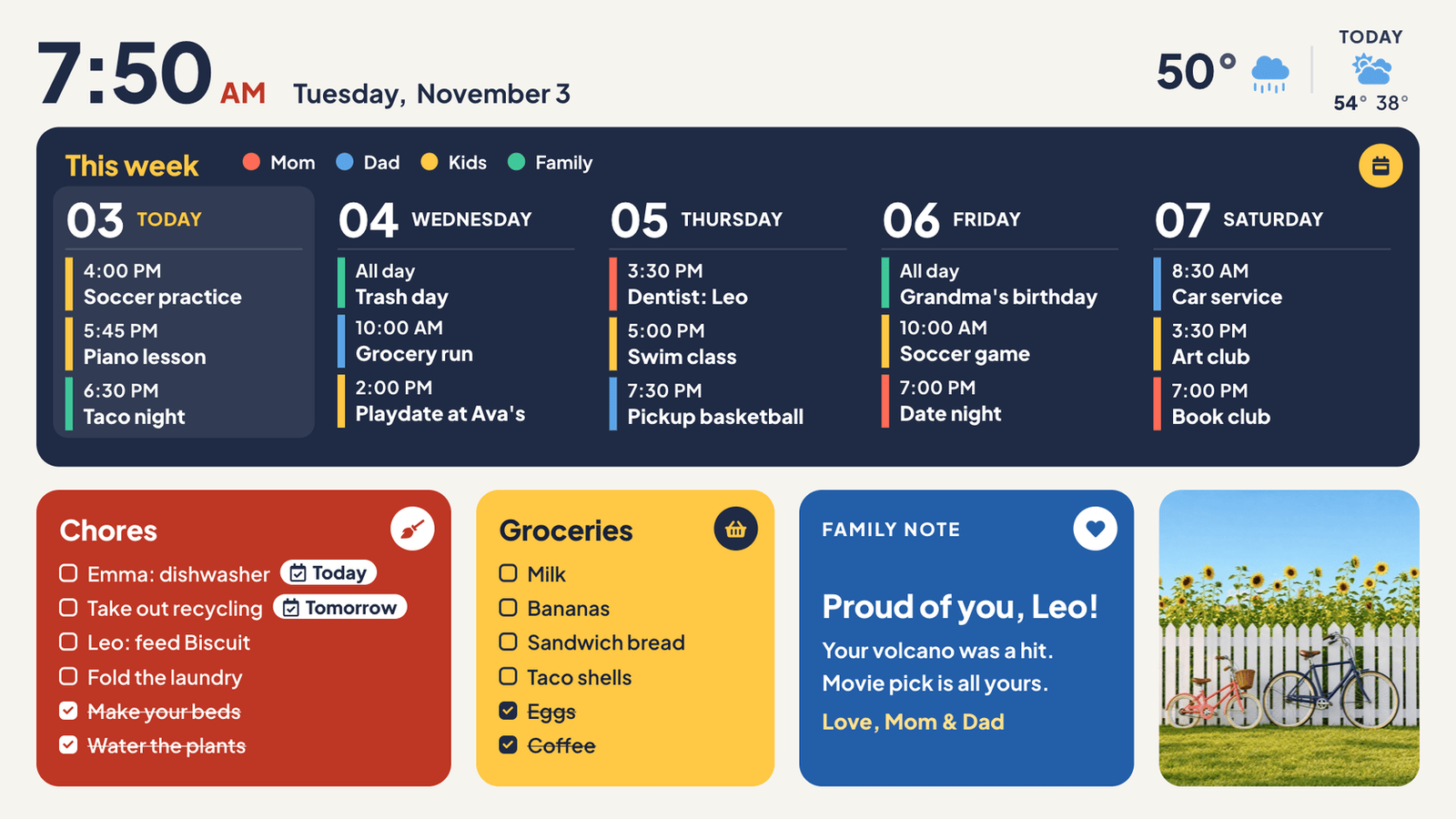
Design the screen in a browser. The Pi just renders it.
Up and Running in Under 15 Minutes
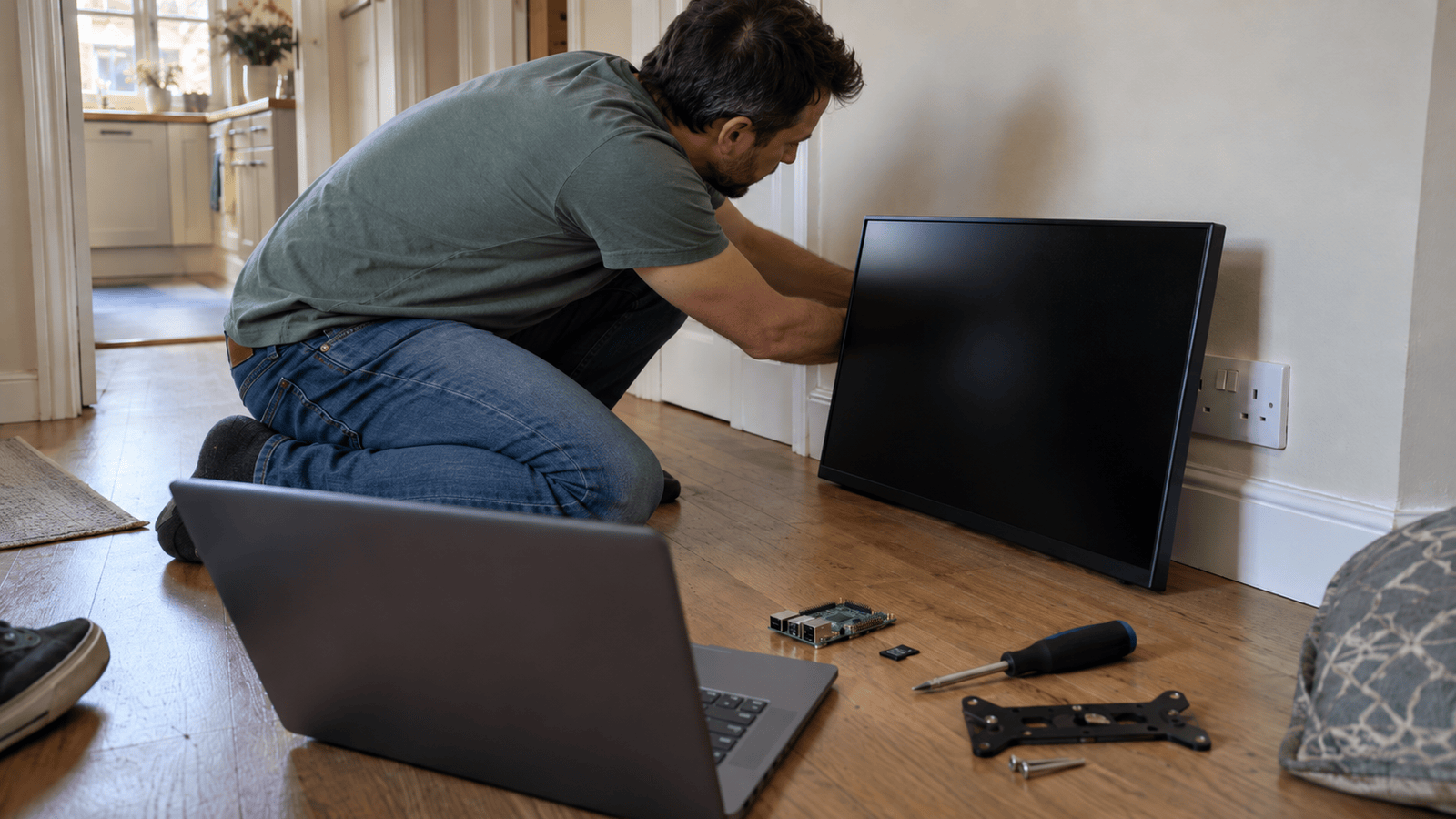
A Raspberry Pi, a microSD card, an HDMI cable and a screen you already own.
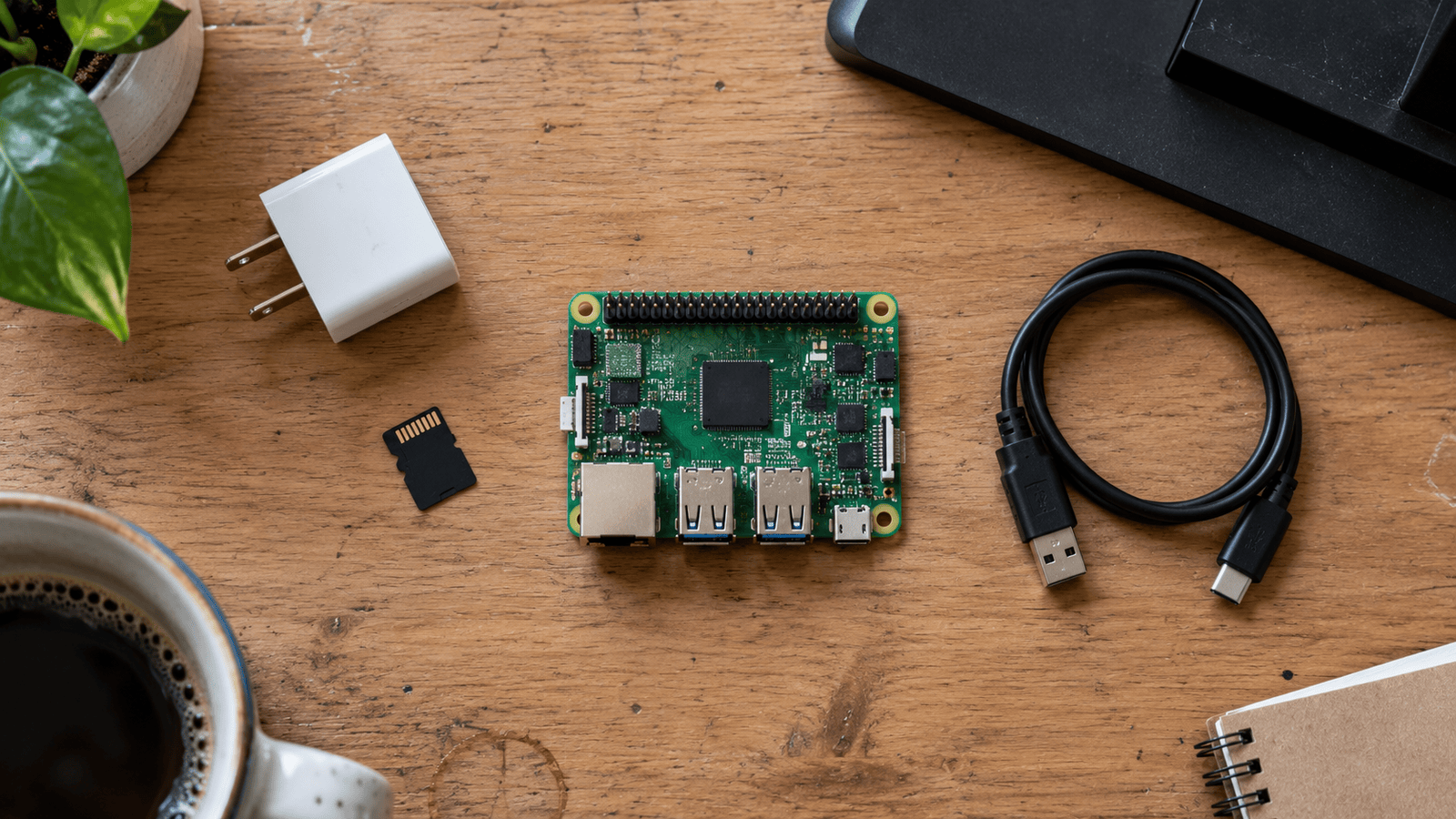
Flash DAKboard OS to a microSD card
Download DAKboard OS for free and write it to a microSD card with the Raspberry Pi Imager. Then put the card in your Pi.
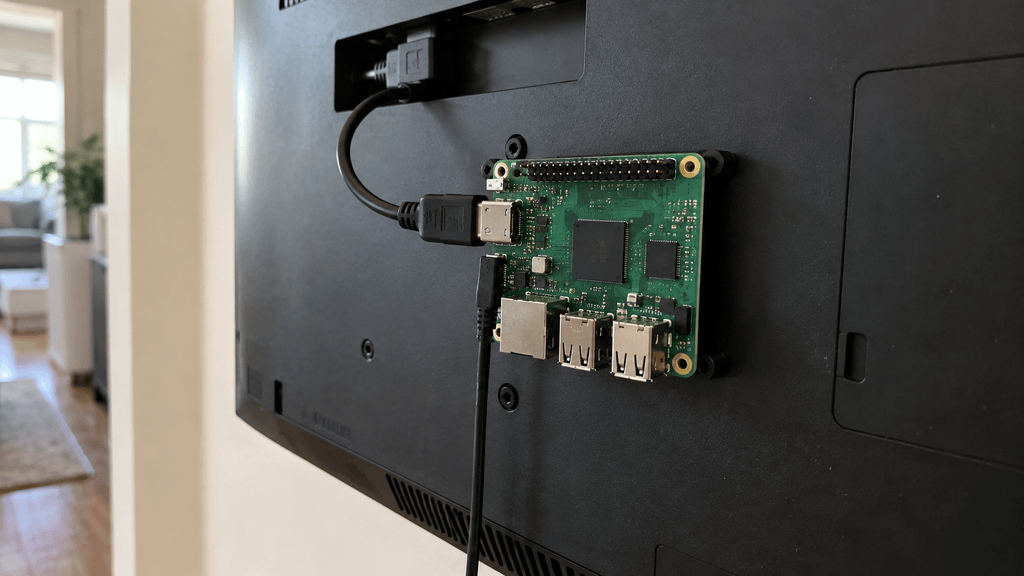
Plug the Pi into any screen
HDMI into a monitor, a TV or an old panel and power on. DAKboard OS boots straight onto the screen and walks you through Wi-Fi.
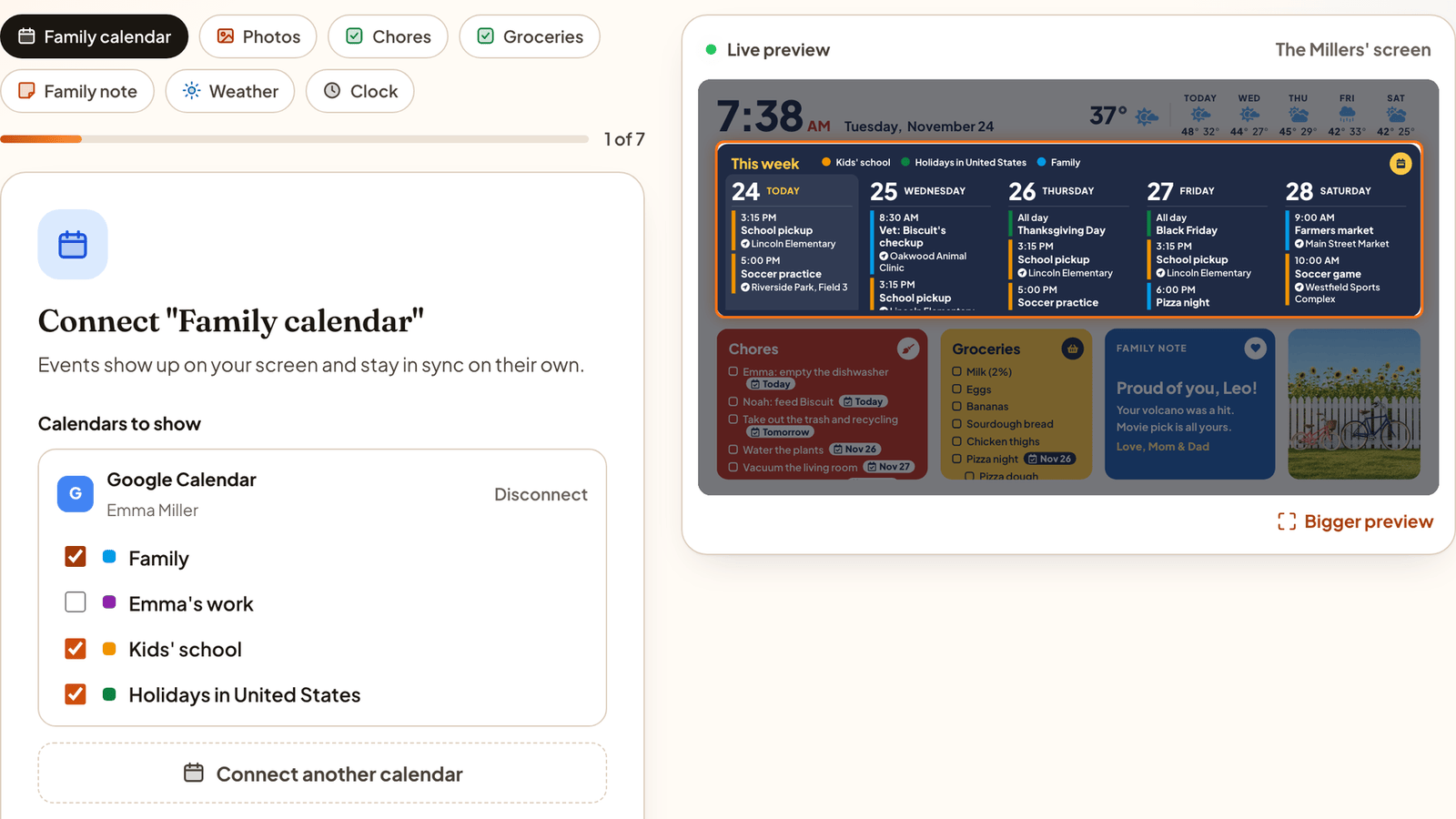
Set it up in your browser
Connect your calendars, photos and smart home, then customize the look in your browser. Simple to use, with no coding needed.
You Could Script This Yourself. Plenty of Our Customers Did.
A weekend with an API key, a browser in kiosk mode and a cron job gets you a calendar on a wall. A lot of users running DAKboard today started exactly that way.
What tends to wear thin is the maintenance. Tokens expire, an API changes shape, the browser updates and the screen goes blank while you are at work, and the thing your family now relies on is broken until you have an evening free.
DAKboard is everything that weekend of configuration gives you, without the weekend, and it keeps working when the API changes. You still own the hardware, you still choose the layout, and the Pi is still yours to tinker with once the screen is up.
Built on Screens People Already Owned
Here's what users running DAKboard on their own hardware have to say.
"I trashed all paper calendars and built our family's 'command center' on a 42 inch TV in our hallway. I can update our schedules, daily menu and chore chart all from my phone or laptop."
"I have sports scores, sports tickers, guest wifi, weather, there's a lot of things you can customize on this board!"
"This was a game-changer for our household! No longer having to copy whiteboard calendars each week for 4 people and a business! Even the kids have learned to check the DAKboard to see what's happening for each one. Life saver!"
Jannette M., verified customer
"Purchased and spun up DAKboard to help keep some sanity in the house. Super simple to sync up our family's calendars. Had an issue that I couldn't resolve and their support team walked me through the fix within 24 hrs. 5 Stars!"
Jess P., verified customer
Choose Your Setup
Every DAKboard needs a screen and a small computer behind it.
Your own Raspberry Pi and DAKboard OS
Free operating system, your hardware, your screen. Flash a card, plug it in, and manage the display from your account in a browser.
- DAKboard OS is a free download
- Works with the monitor, TV or panel you already have
- Free software plan available, no credit card needed
- Home Assistant full screen, included on every plan
Or skip the build
- Pre-loaded microSD card, $24.95. DAKboard OS already written to the card. Put it in your Pi and power on.
- DAKboard CPU, from $99.95. A small plug-and-play box that arrives preconfigured. HDMI into any screen, connect to Wi-Fi, done.
- Want TouchHub? Our family chores chart with points and rewards, the Home Assistant app and the Meal Planner all need a touchscreen: a DAKboard Wall Display or any touchscreen tablet. A Pi driving a monitor or TV displays everything, but it is not tap-to-complete.
Want a finished one for the kitchen instead of a build? DAKboard Wall Displays are touchscreens with the computer built in, from $699.95. See the wall displays
Raspberry Pi Calendar Questions, Answered
What do I need to build a Raspberry Pi calendar display?
A Raspberry Pi, a microSD card, a power supply, an HDMI cable and any screen with an HDMI input. On the software side you need a free DAKboard account and DAKboard OS, which is a free download. If you would rather not flash a card, a pre-loaded microSD card is $24.95 and a plug-and-play DAKboard CPU starts at $99.95.
Which Raspberry Pi models work with DAKboard?
We recommend Raspberry Pi models 4B (2GB or higher) if you want looping screens, and 5 if you want video or touchscreen functionality. The full list: Raspberry Pi 3B, 3B+, 3A+, 4B (we recommend the 2GB version or higher), 5 (support for the 4GB and 8GB models came with OS version 4.01 and up, the 2GB model on version 4.05 and up, and the 1GB models are confirmed working on version 4.12 and above), and the Raspberry Pi Zero 2W, which is the board used in the DAKboard CPU Mini.
Is DAKboard OS free?
Yes. DAKboard OS is a free download for your own Raspberry Pi, and the software has a free forever plan with no credit card needed. You only pay if you want the paid features below.
What does the free plan include? What do Essential and Plus add?
Free gives you one screen, ready-made layouts and full-screen Home Assistant. Our Essential and Plus plans let you fully customize your layouts, run multiple different screens and displays, choose colors and fonts, use all 90+ third-party integrations (and even create your own via webhooks). Perfect if you want a screen in each of the kids' rooms, if you want a different layout in your home office, or if you want to give the grandparents a screen just showing family photos you can control from a single account. From only $5 per month. Plus comes with a 30-day free trial, which asks for a card but does not charge it. The free forever plan never needs one.
Does the display update itself?
Yes. Once connected to Wi-Fi, the Pi pulls your screen and its data from your DAKboard account automatically, so a calendar event added on your phone appears on the wall without anyone touching the Pi. Change the layout in the browser and the display picks it up. There may be a short delay between making changes to your calendar and seeing them on your DAKboard screen; Essential and Plus plans have much faster refresh speeds.
Can I show calendars that are not on Google?
Yes. Google Calendar, Outlook and Office 365, Apple iCloud, Cozi, TeamSnap and any iCal or ICS link work together on the same screen, each with its own color, so a school or sports calendar sits beside your own.
Put the Pi in the Drawer to Work
Free operating system, free plan to start, and a Raspberry Pi family calendar on the wall before the coffee goes cold.